
Velocity Bridge




Velocity Bridge provides seamless Universal Clipboard integration between iOS and desktop systems (Linux and Windows). This utility enables bidirectional synchronization of text and image data over a local network, serving as a privacy-focused, open-source alternative to AirDrop.
Core Functionality
- Bidirectional Synchronization: Transfer text and image data from iOS to Linux/Windows and from Linux/Windows to iOS.
- Image Support: Images copied to the desktop clipboard are automatically transmitted to iOS, and vice versa.
- Data Privacy: All transmissions occur within the local network; no data is ever uploaded to external servers.
- Native performance: Developed with Tauri to ensure a minimal resource footprint and native OS integration.
Key Features
- System Tray Integration: Background execution with persistent connectivity.
- In-App Updater: Automated update detection and one-click installation with cryptographic verification.
- Advanced Autostart: Integrated startup management via the official autostart plugin.
- Clipboard History: Searchable history of recent clipboard entries with clear-all functionality.
Screenshots
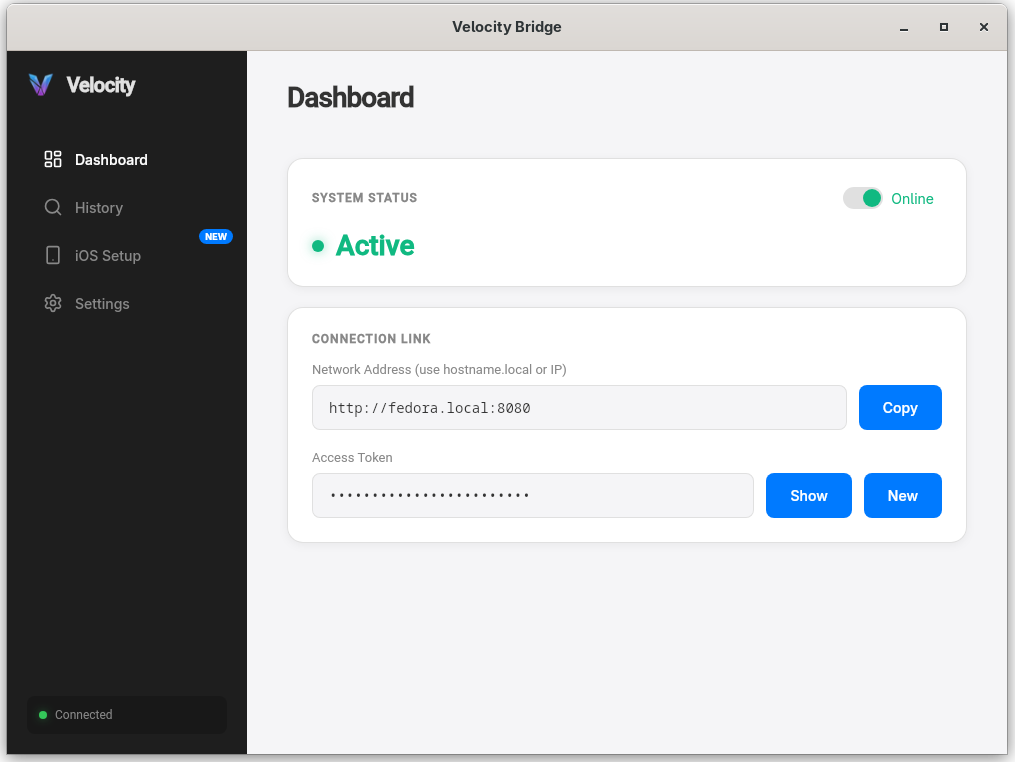
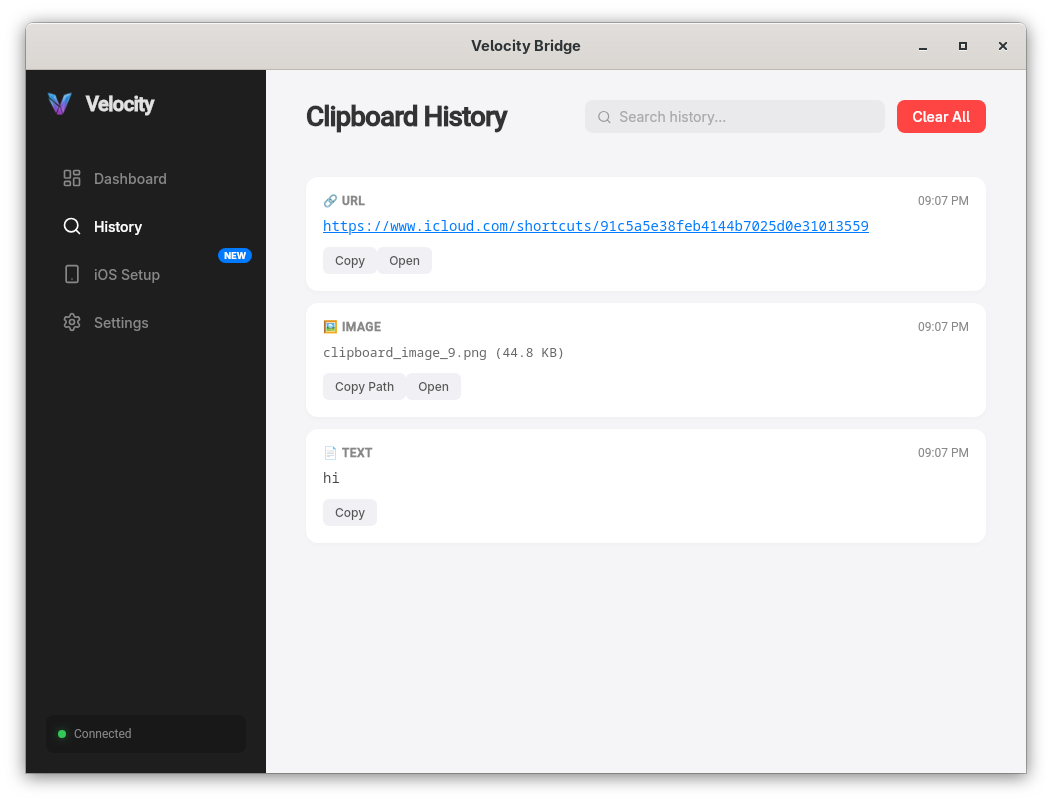
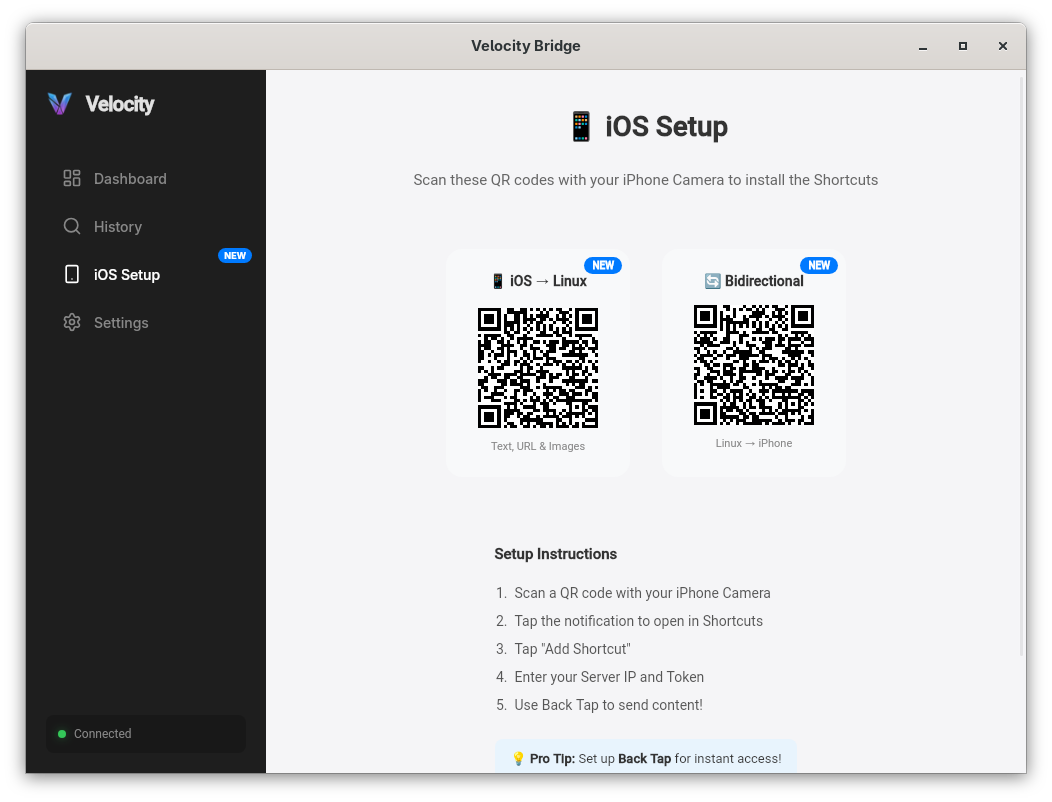
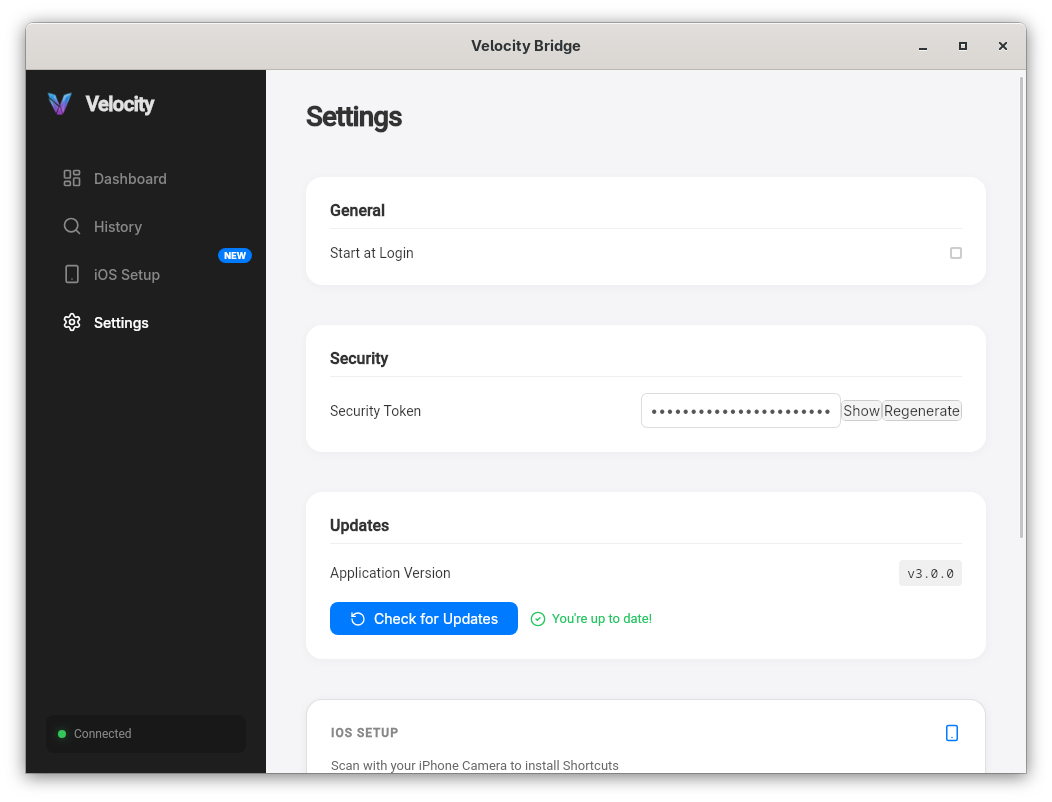
Installation
Automated Installation
Run the following command in your terminal:
curl -fsSL https://raw.githubusercontent.com/Trex099/Velocity-Bridge/main/install.sh | bash
Manual Installation by Distribution
Fedora / RHEL:
sudo dnf copr enable trex099/velocity-bridge
sudo dnf install velocity-bridge libappindicator-gtk3
Windows Installation
Download the Windows installer from the releases page.
Headless Installation
For environments without a graphical user interface, a background service implementation is available. This configuration includes dependency validation and systemd service integration.
To install the headless service, execute:
curl -fsSL https://raw.githubusercontent.com/Trex099/Velocity-Bridge/main/service/install.sh | bash
Management of the background service is achieved via systemd:
systemctl --user status velocity
journalctl --user -u velocity -f
Alternative Formats
Pre-compiled binaries are available via the releases page:
- AppImage
- .deb (Debian, Ubuntu, Mint, Pop!_OS)
- .rpm (Fedora, openSUSE)
iOS Configuration
Velocity Bridge utilizes iOS Shortcuts to interface with the clipboard. To configure:
- Shortcuts Setup: Install the required shortcuts by scanning the QR codes in the application's iOS Setup tab.
- Connectivity: Navigate to the Settings tab in the desktop application and copy the Full Sync URL.
- Authentication: Paste the URL into the Shortcut configuration. This string contains both the local IP address and the secure authentication token.
Optimization: Map these shortcuts to the Back Tap feature (Settings > Accessibility > Touch > Back Tap) on iOS to instantly transfer your clipboard without opening any app.
Technical Architecture
[  iOS Device  ]  <─── HTTP/REST ───>  [  Linux/Windows Host (Tauri/Rust)  ]
                                                  │
                                         [ Systems Interface ]
                                         (wl-copy / xclip / xsel)
Troubleshooting
Connectivity Failures
Ensure the host firewall permits ingress traffic on TCP port 8080:
sudo firewall-cmd --add-port=8080/tcp --permanent
sudo firewall-cmd --reload
On Windows, allow the application through Windows Defender Firewall when prompted, or open TCP port 8080 manually in the firewall settings.
Clipboard Inconsistency
Verify that the appropriate clipboard manager for your display server is installed:
- Wayland:
wl-clipboard - X11:
xcliporxsel
Execution Errors
Run the application via the terminal to capture diagnostic logs:
velocity-bridge
Uninstallation
Standard Installation
rm ~/.local/bin/velocity-bridge
rm ~/.local/share/applications/velocity-bridge.desktop
rm ~/.local/share/icons/hicolor/256x256/apps/velocity-bridge.png
Package Managers
- DNF:
sudo dnf remove velocity-bridge - AUR:
yay -R velocity-bridge - APT:
sudo apt remove velocity-bridge
Licensed under the GPL-3.0 License. Issues and feature requests should be submitted via the official issue tracker.