
Well-Architected IaC (Infrastructure as Code) Analyzer
Description
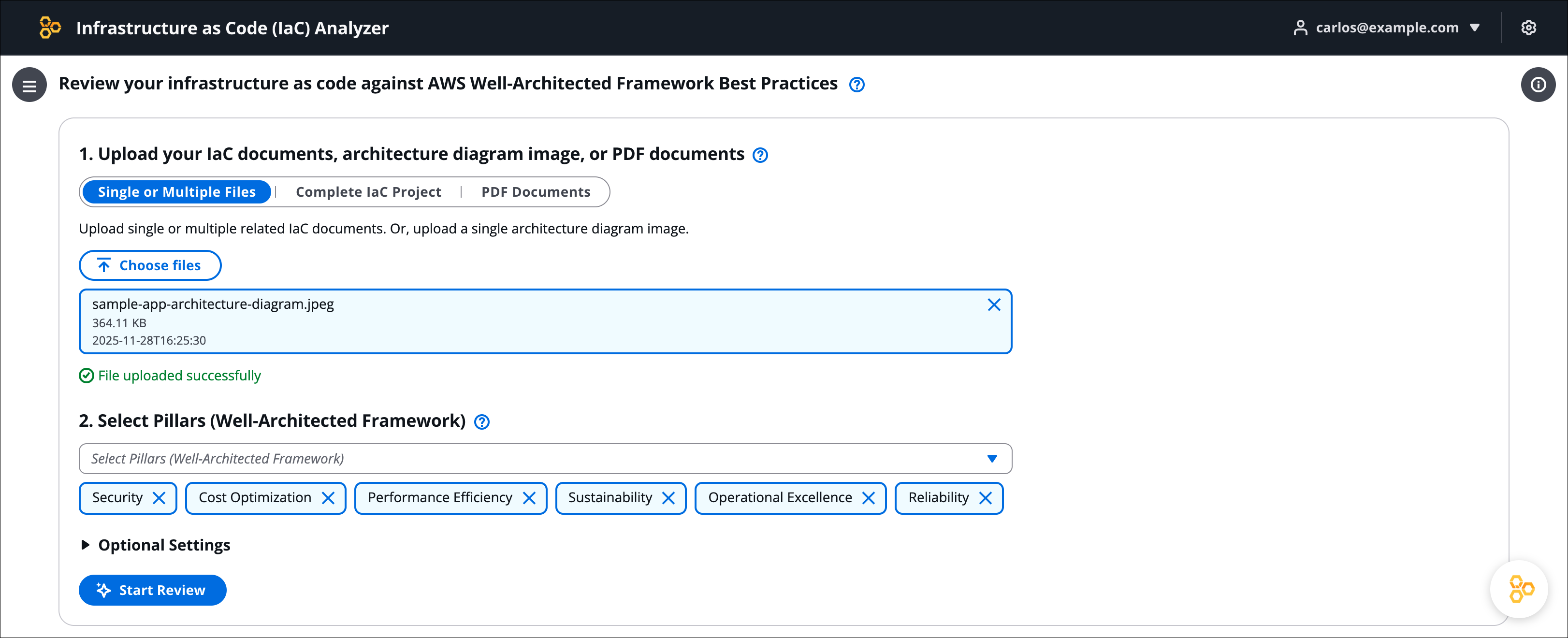
Well-Architected Infrastructure as Code (IaC) Analyzer is a sample project that demonstrates how generative AI can be used to evaluate infrastructure code for alignment with best practices.
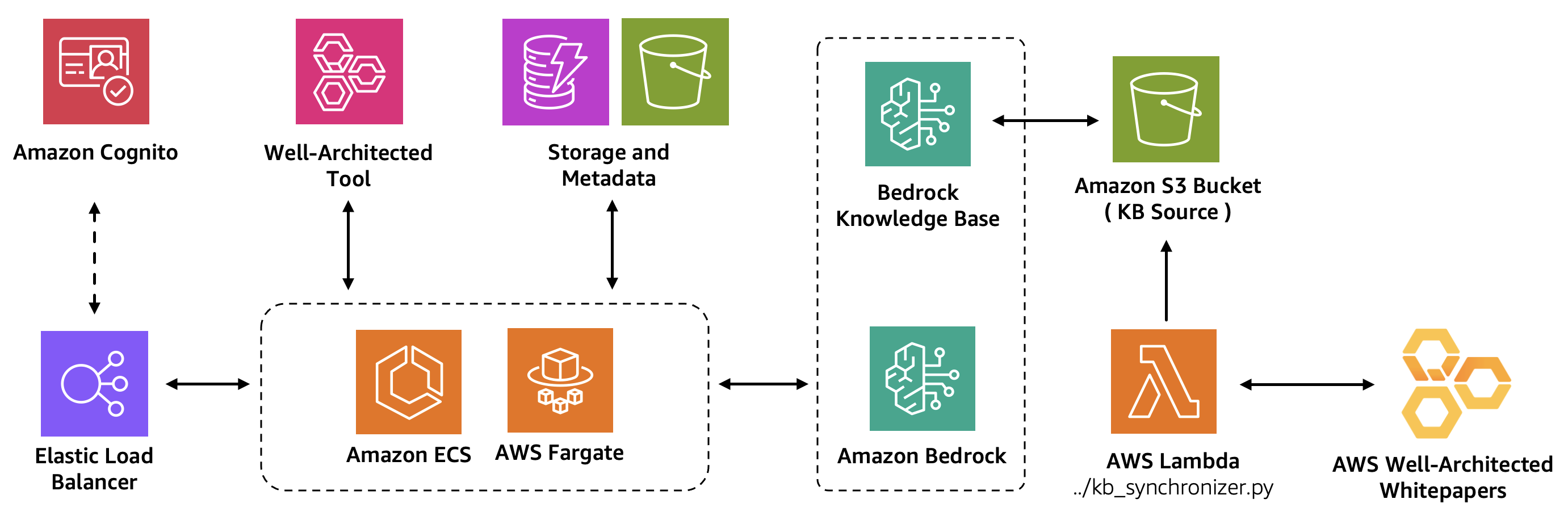
It features a modern web application built with React and AWS Cloudscape Design System, allowing users to upload IaC documents (e.g., AWS CloudFormation, Terraform, or AWS CDK templates), complete IaC projects (multiple files or zip archives), or architecture diagrams for assessment. The application leverages Amazon Bedrock to analyze the infrastructure against AWS Well-Architected best practices. These best practices are sourced from AWS Well-Architected whitepapers and synchronized with the Amazon Bedrock knowledge base.
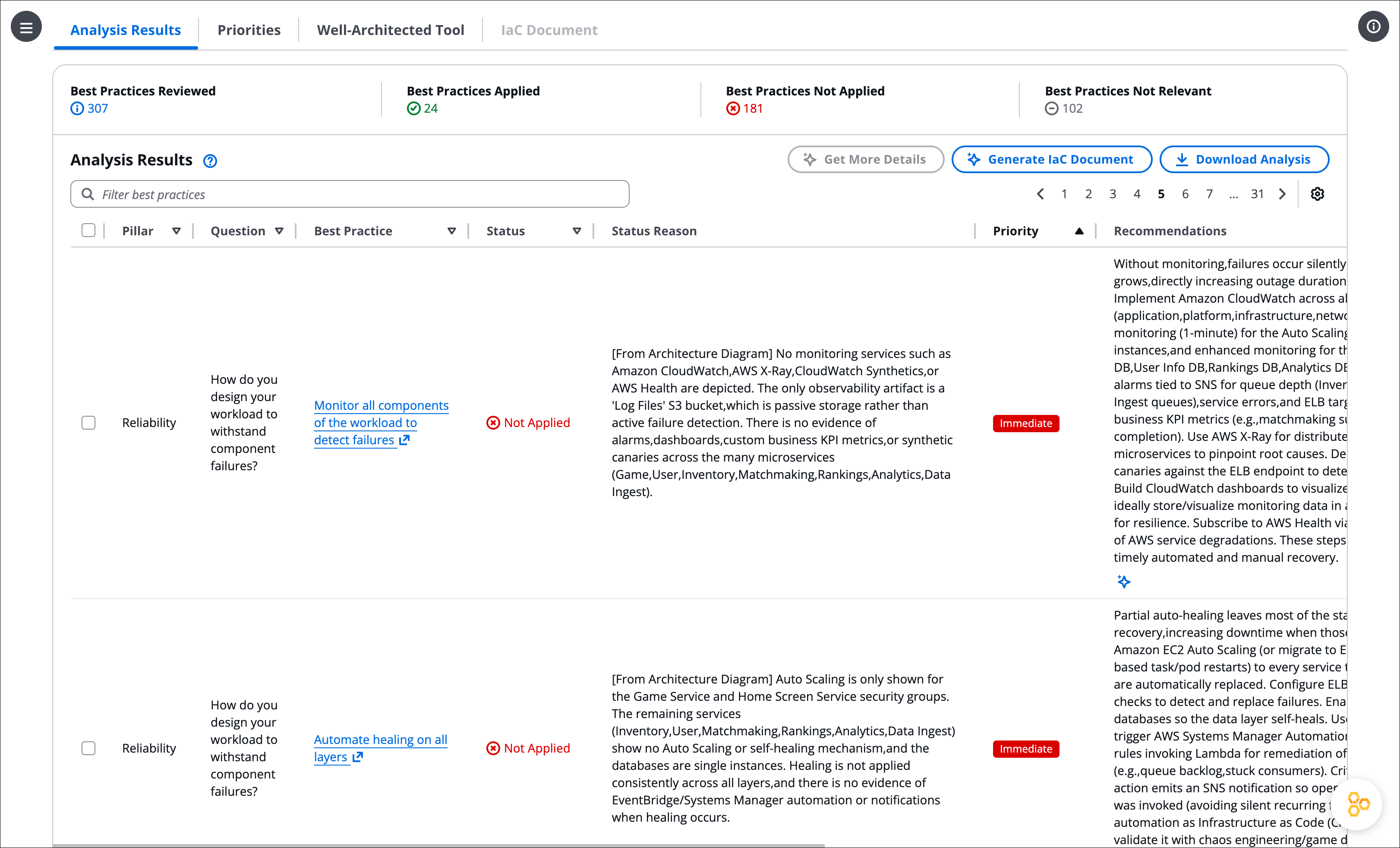
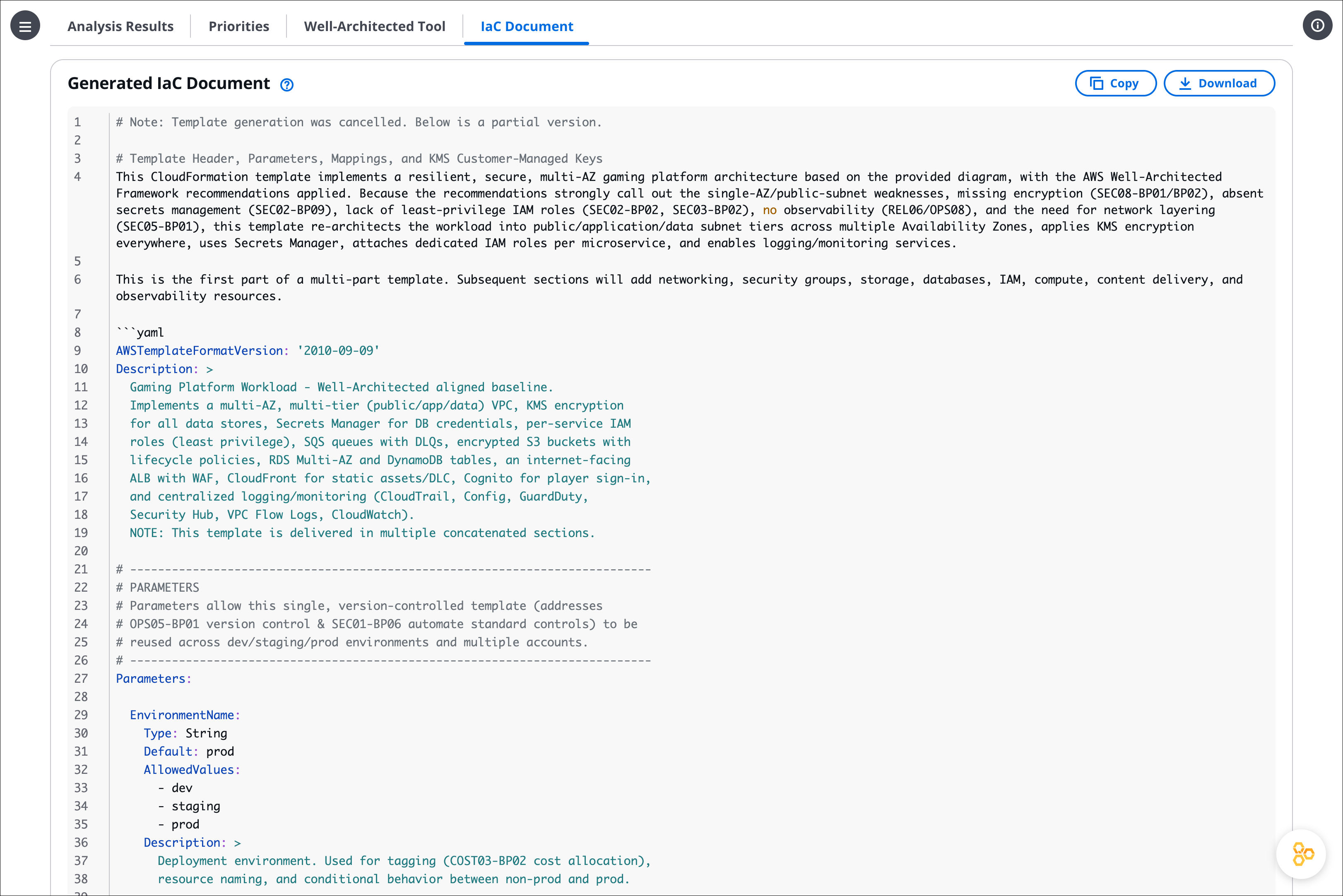
This tool provides users with insights into how well their infrastructure code aligns with or deviates from established AWS best practices, offering suggestions for improving cloud architecture designs. Users can also upload supporting documents to provide additional context for more accurate analysis results. For architecture diagrams, it can even generate corresponding IaC templates following AWS best practices.
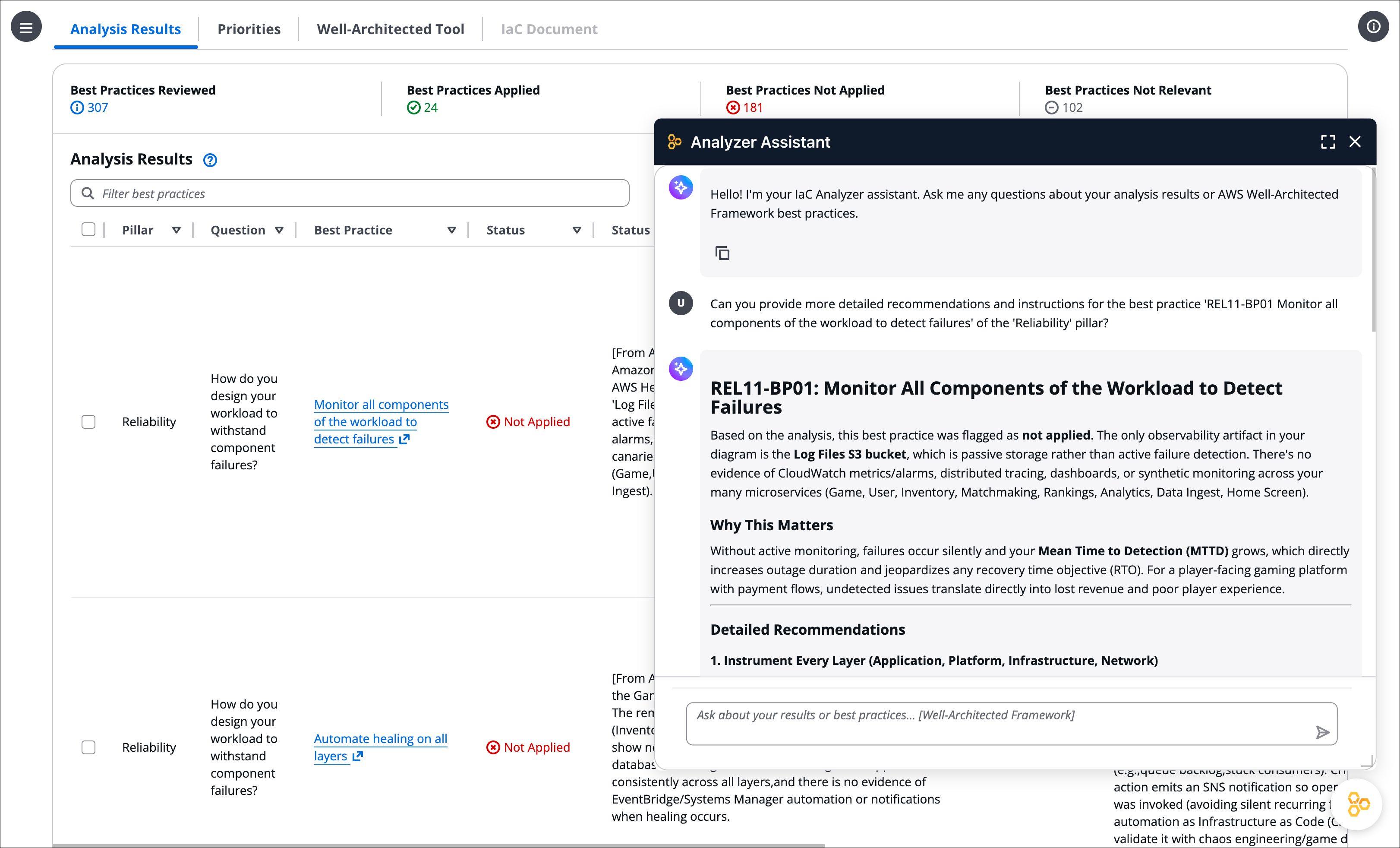
Additionally, an interactive Analyzer Assistant chatbot enables users to ask questions, seek clarification, and receive personalized guidance about analysis results and Well-Architected best practices.
Note: This is a sample project, for non-production usage. You should work with your security and legal teams to meet your organizational security, regulatory and compliance requirements before deployment
Features
-
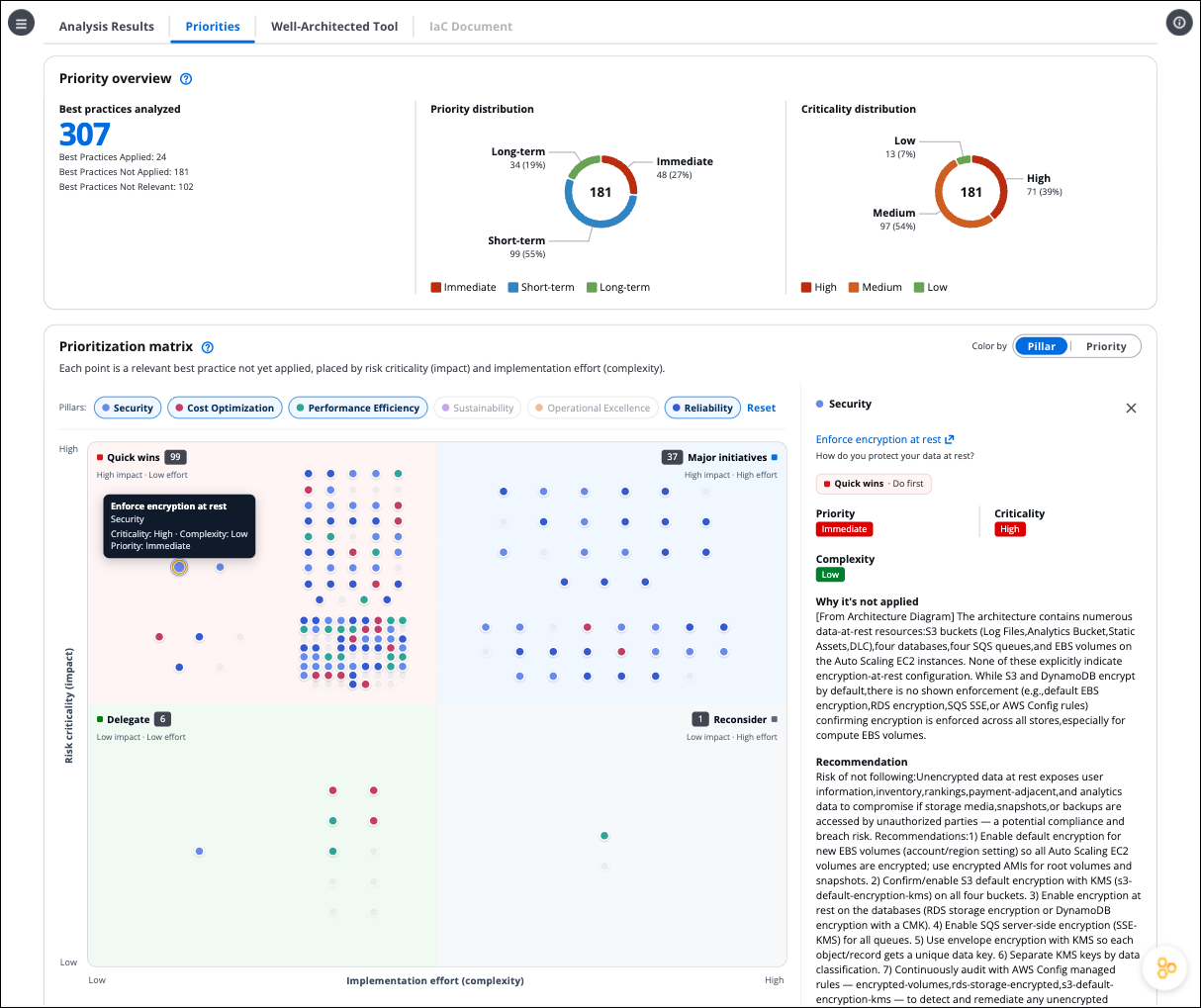
NEW 🎯 Prioritization Framework with Eisenhower Matrix:
- Each Not Applied best practice is scored with Criticality (from Knowledge Base Risk Level), Complexity (remediation effort), and Priority (Immediate | Short-term | Long-term) derived via the Eisenhower Matrix
- New Priorities tab visualizes every relevant, Not Applied best practice on an interactive Eisenhower-style matrix, plotted by Risk criticality (impact) and Implementation effort (complexity) across four quadrants: Quick wins, Major initiatives, Delegate, and Reconsider
- Click any point on the matrix to open a details panel with the best practice's status reason, recommendation, and Criticality/Complexity/Priority reasons, or ask the Analyzer Assistant about it in one click
- Filter the analysis by Criticality, Complexity, or Priority to focus remediation planning, and export all fields to CSV
-
NEW 🧠 Enhanced AI Capabilities with Latest Anthropic Models:
- Full support for Claude Fable 5, Claude Opus 4.8, Claude Opus 4.7, Claude Sonnet 4.6, and Claude Opus 4.6 models
- Supported Claude models leverage Adaptive Thinking for complex reasoning and analysis
- 1M token context window natively supported by Claude Fable 5, Claude Opus 4.8, Claude Opus 4.7, Claude Opus 4.6, and Claude Sonnet 4.6 models, enabling analysis of much larger IaC projects and architectural documentation in a single pass
-
🚀 Accelerated Analysis with Parallel Processing:
- Configurable batch size controls how many Well-Architected (or selected Lens) questions are processed in parallel
- Complete full framework review up to 80% faster compared per-question sequential processing
- Default adjustable batch size configuration (between 1-12) balances speed and API throttling risk
-
💰 Cost-Optimized Vector Storage with Amazon S3 Vectors:
- S3 Vectors is the default vector store for the Bedrock Knowledge Base
- Achieve up to 80% cost reduction compared to OpenSearch Serverless while maintaining sub-second query performance
- OpenSearch Serverless remains available as an option for deployment
- Upload and analyze Infrastructure as Code templates:
- CloudFormation (YAML/JSON)
- Terraform (.tf)
- AWS CDK (in any supported language)
- Upload and analyze architecture diagrams:
- PNG format
- JPEG/JPG format
- Analyze complete IaC projects:
- Multiple files at once
- ZIP archives containing infrastructure code
- Upload and analyze architectural documentation in PDF format:
- PDF documents (up to 5 files, max 4.5MB each)
- With the recent "Citations API and PDF support for Claude models", the analyzer is now able to analyze text, charts and visuals (e.g. embedded images and diagrams) from the PDF documents.
- Interactive Analyzer Assistant chatbot:
- Ask questions about analysis results
- Get detailed explanations of Well-Architected best practices
- Receive personalized guidance for implementation
- View conversation history with markdown support
- Download or delete chat histories for each analysis
- Add supporting documents (PDF, TXT, PNG, JPEG) to provide additional context for analysis
- Generate IaC templates from architecture diagrams
- Real-time analysis against Well-Architected best practices
- Integration with AWS Well-Architected Tool
- Export analysis results and recommendations
- Language Localization Support:
- Select your preferred language from the Output Language in Optional Settings menu
- Support for English, Japanese, Korean, Brazilian Portuguese, Spanish and French
- Language selection affects analysis results, recommendations, and detailed explanations
- Consistent localization across all file types (CloudFormation, Terraform, CDK, PDF documents, and architecture diagrams)
- Multi-lens support:
- Analyze infrastructure against specialized Well-Architected lenses
- Support for domain-specific lenses including Serverless, IoT, SaaS, Machine Learning, and more
- Get tailored recommendations specific to your workload type
- Switch between different lenses for comprehensive analysis
- Custom Lenses support:
- Extend analysis beyond AWS Official Lenses with your organization's own Custom Lenses
- Define custom pillars, questions, and best practices specific to your security policies, compliance requirements, or internal standards
- Integrate custom lens documentation (PDF) with the Amazon Bedrock Knowledge Base for AI-powered analysis
- See the Custom Lenses Guide for step-by-step instructions
Expand to see the list of supported AWS Official Lenses:
- AWS Well-Architected Framework (core framework)
- Industry Lenses:
- Financial Services Industry
- Healthcare Industry
- Government
- Mergers and Acquisitions
- Technology Lenses:
- Generative AI
- Serverless Applications
- Machine Learning
- IoT (Internet of Things)
- SaaS (Software as a Service)
- Data Analytics
- Container Build
- DevOps
- Migration
- Connected Mobility
- SAP
Installation and Deployment
You have three options for deploying this solution:
- Option 1: Using a CloudFormation Deployment Stack (Recommended)
- Option 2: Using a Deployment Script
- Option 3: Manual Deployment
Option 1: Using a CloudFormation Deployment Stack (Recommended)
This option uses AWS CloudFormation to create a temporary deployment environment to deploy the Well-Architected IaC Analyzer solution. This approach doesn't require any tools to be installed on your local machine.
Deployment Steps
-
Download the CloudFormation template: iac-analyzer-deployment-stack.yaml
-
Open the AWS CloudFormation console:
- Make sure you are in the same AWS region where you enabled access to the LLM models
-
On the "Create stack" page:
- Select "Upload a template file" and upload the
iac-analyzer-deployment-stack.yamltemplate - Choose "Next"
- Select "Upload a template file" and upload the
-
On the "Specify stack details" page. Enter or change the stack name, then:
-
Change the stack parameters as needed. Check the CloudFormation Configuration Parameters section below for details
-
Security Note: By default, the stack deploys with a Public Application Load Balancer (internet-facing) with authentication enabled. For maximum security, we strongly recommend keeping authentication enabled for internet-facing deployments. If you disable authentication, your application will be publicly accessible without any security controls.
-
Model Selection Note: The tool currently defaults to Claude Sonnet 4.6. If you want to use a different model (E.g. Claude Fable 5, Claude Opus 4.8, or Claude Opus 4.7), you'll need to explicitly add the model ID in the stack "Amazon Bedrock Model ID" configuration parameter. Please note that not all models are available in all AWS regions, so verify availability in your region before deployment.
-
Geographic and Global Cross-Region Inference Note: The default Claude Sonnet 4.6 model ID uses a GLOBAL cross-Region inference profile (
global.anthropic.claude-sonnet-4-6), which routes requests to any supported AWS commercial Region worldwide for optimal performance and cost savings. If your organization has data residency or compliance requirements, consider using a GEOGRAPHIC inference profile instead (e.g., "us." or "eu." prefix). For more information visit the documentation Choosing between Geographic and Global cross-Region inference
-
-
Choose "Next" until reaching the "Review" page and choose "Submit".
-
The deployment process typically takes 15-20 minutes.
Once complete, you'll find a new CloudFormation stack named WA-IaC-Analyzer-{region}-GenAIStack containing all the deployed resources for this solution. Find the application URL in the stack outputs:
- In the CloudFormation console, navigate to the Outputs tab of the stack named WA-IaC-Analyzer-{region}-GenAIStack
- Look for the FrontendURL value
Post-Deployment Steps
-
If you enabled authentication with a custom domain:
- Create a DNS record (CNAME or Alias) pointing to the ALB domain name
-
If you created a new Cognito user pool:
- Navigate to the Amazon Cognito console
- Find the user pool created by the stack (named "WAAnalyzerUserPool")
- Add users who should have access to the application
-
Access your deployed application using the URL from the CloudFormation outputs (or your CNAME or Alias pointing to the ALB)
Troubleshooting
If you encounter issues during deployment, you can check the deployment logs in CloudWatch:
- Log Group:
iac-deployment-logs-<region>-<unique-id>- This log group contains all deployment steps and actions
- Log Stream
{instance_id}-user-data: Contains deployment instance initialization and setup logs - Log Stream
{instance_id}-deploy: Contains the complete Well-Architected IaC Analyzer deployment logs
You can also find a direct link to these logs in the Outputs tab of your CloudFormation deployment stack.
Option 2: Using a Deployment Script
Expand this section for instructions using the deployment script:
Prerequisites
The following tools must be installed on your local machine:
- Node.js (v18 or later) and npm
- Python (v3.11 or later) and pip
- AWS CDK CLI
- Either one of these container tools:
- AWS CLI configured with appropriate credentials
Note: If you would like to change the default Load Balancer scheme, AI model or authentication options, check the Configuration Options For Manual Deployments section first before deploying.
- Clone the Repository
git clone https://github.com/aws-samples/well-architected-iac-analyzer.git
cd well-architected-iac-analyzer
- Make the deployment script executable:
chmod +x deploy-wa-analyzer.sh
- Deploy with required parameters:
# Deploy using Docker
./deploy-wa-analyzer.sh -r us-west-2 -c docker

# Or deploy using Finch
./deploy-wa-analyzer.sh -r us-west-2 -c finch
The script will automatically:
- Check for prerequisites
- Set up the Python virtual environment
- Install all dependencies
- Deploy the CDK stack
- Provide post-deployment information
After successful deployment, you can find the Application Load Balancer (ALB) DNS name in:
- The outputs of the
deploy-wa-analyzer.shscript - The outputs section of the CloudFormation stack named
WA-IaC-Analyzer-{region}-GenAIStackin the AWS Console
Option 3: Manual Deployment
If you prefer to manually deploy step by step, expand this section for more instructions:
Prerequisites
The following tools must be installed on your local machine:
- Node.js (v18 or later) and npm
- Python (v3.11 or later) and pip
- AWS CDK CLI
- Either one of these container tools:
- AWS CLI configured with appropriate credentials
Note: If you would like to change the default Load Balancer scheme, AI model or authentication options, check the Configuration Options For Manual Deployments section first before deploying.
- Clone the Repository
git clone https://github.com/aws-samples/well-architected-iac-analyzer.git
cd well-architected-iac-analyzer
- Set Up Python Virtual Environment
# Create virtual environment
python -m venv .venv

# Activate virtual environment
# On Linux/macOS:
source .venv/bin/activate
# On Windows:
.venv\Scripts\activate

# Verify you're in the virtual environment
# You should see (.venv) at the beginning of your prompt
- Install Dependencies
Install Python dependencies:
pip3 install -r requirements.txt
Install CDK dependencies:
npm install
Install Frontend dependencies:
cd ecs_fargate_app/frontend
npm install
cd ../..
Install Backend dependencies:
cd ecs_fargate_app/backend
npm install
cd ../..
- Deploy the Stack
Set the AWS region and ignore ECR credentials storage during CDK deployment:
export CDK_DEPLOY_REGION=us-west-2
export AWS_ECR_IGNORE_CREDS_STORAGE=true
Set the container runtime:
export CDK_DOCKER=finch  # For Finch

# OR

export CDK_DOCKER=docker # For Docker
Bootstrap CDK (if not already done):
cdk bootstrap
Deploy the stack:
cdk deploy
After successful deployment, you can find the Application Load Balancer (ALB) DNS name in:
- The outputs of the
cdk deploycommand - The outputs section of the CloudFormation stack named
WA-IaC-Analyzer-{region}-GenAIStackin the AWS Console
CloudFormation Configuration Parameters
The deployment stack template provides a comprehensive set of configuration options organized into parameter groups. Expand this to see more details:
Global Settings
-
Deploy with internet-facing Application Load Balancer? (
PublicLoadBalancer)True(Default): Deploys an internet-facing load balancer accessible from the internetFalse: Deploys an internal load balancer accessible only within your VPC network- Access considerations for internal load balancers: To access an internal load balancer, you'll need network connectivity to the deployed VPC via:
- VPC peering
- VPN connection
- AWS Direct Connect
- Other network connectivity solutions
- ⚠️ Security Warning: By default, authentication is enabled for secure access. If you disable authentication while using a public load balancer (
True), your application will be publicly accessible without any security controls. We strongly recommend keeping authentication enabled for public-facing deployments.
-
Amazon Bedrock Model ID (
ModelId)- Default:
global.anthropic.claude-sonnet-4-6(Claude Sonnet 4.6) - You can specify an alternative Bedrock model ID if needed
- Note: This application has been primarily tested with Anthropic models (Claude Fable 5, Claude Opus 4.8, Claude Opus 4.7, Claude Sonnet 4.6, Claude Opus 4.6, Claude Sonnet 4.5, and Claude Opus 4.5). While other Bedrock models may work, using different models might lead to unexpected results.
- Claude Fable 5: Uses always-on Adaptive Thinking (no thinking configuration is sent) with high effort. Natively supports 1M token context window.
- Claude Opus 4.8 / 4.7 models: Use Adaptive Thinking with xhigh effort for complex reasoning and analysis. Natively support 1M token context window.
- Claude 4.6 models: Use Adaptive Thinking with high effort for complex reasoning and analysis. Natively support 1M token context window.
- Claude 4.5 models: Use Extended Thinking with budget tokens for enhanced analysis.
- Default:
-
Analysis Batch Size (
BatchSize)- Default:
5 - Range: 1-12
- Controls how many Well-Architected questions are processed in parallel during analysis
- Lower values (1-3): More conservative approach, reduces the risk of API throttling
- Higher values (6-12): Faster processing, but may increase the risk of API throttling
- Recommendation: Start with the default value of 5 and adjust based on your experience with API throttling
- Default:
Authentication Settings
-
Enable Authentication (
Authentication)True(Default): Enables authentication via the selected methodFalse(Not Recommended): No authentication required to access the application
-
Authentication Method (
AuthType)new-cognito(Default): Creates a new Amazon Cognito user poolexisting-cognito: Uses an existing Amazon Cognito user pooloidc: Uses an OpenID Connect provider (Auth0, Okta, etc.)none(Not Recommended): No authentication
-
SSL Certificate ARN (
CertificateArn)- Required when
Authenticationis set toTrue - Format:
arn:aws:acm:region:account:certificate/certificate-id - Important: Before enabling authentication, you must have a valid AWS Certificate Manager (ACM) certificate covering the DNS domain name that you plan to use for accessing the application
- Required when
Authentication-Specific Settings
New Cognito User Pool Settings
These parameters are required when AuthType is set to new-cognito:
-
Cognito Domain Prefix (
CognitoDomainPrefix)- A unique prefix for your Cognito domain (e.g.,
wa-analyzer) - The resulting domain will be:
your-prefix.auth.region.amazoncognito.com
- A unique prefix for your Cognito domain (e.g.,
-
Allowed Callback URLs (
CallbackUrls)- Comma-separated list of URLs where users will be redirected after signing in
- Must include the URL you'll use to access the application, followed by
/oauth2/idpresponse - Example:
https://wa-analyzer.example.com/oauth2/idpresponse
-
Logout Redirect URL (
LogoutUrl)- URL where users will be redirected after signing out
- Example:
https://wa-analyzer.example.com
Existing Cognito User Pool Settings
These parameters are required when AuthType is set to existing-cognito:
-
Existing Cognito User Pool ARN (
ExistingUserPoolArn)- ARN of your existing Cognito user pool
- Format:
arn:aws:cognito-idp:region:account:userpool/pool-id
-
Existing Cognito Client ID (
ExistingUserPoolClientId)- The client ID from your existing Cognito user pool
-
Existing Cognito Domain (
ExistingUserPoolDomain)- The domain of your existing Cognito user pool
- Can be a Cognito prefix domain:
your-prefix.auth.region.amazoncognito.com - Or a custom domain:
auth.your-domain.com
-
Existing Cognito Logout URL (
ExistingCognitoLogoutUrl)- The URL users are redirected to after signing out
- Example:
https://wa-analyzer.example.com
OpenID Connect (OIDC) Settings
These parameters are required when AuthType is set to oidc:
-
OIDC Issuer URL (
OidcIssuer)- The issuer URL for your OIDC provider
- Example for Auth0:
https://your-tenant.us.auth0.com/authorize
-
OIDC Client ID (
OidcClientId)- The client ID from your OIDC provider
-
OIDC Authorization Endpoint URL (
OidcAuthorizationEndpoint)- The authorization endpoint of your OIDC provider
- Example for Auth0:
https://your-tenant.us.auth0.com/authorize
-
OIDC Token Endpoint URL (
OidcTokenEndpoint)- The token endpoint of your OIDC provider
- Example for Auth0:
https://your-tenant.us.auth0.com/oauth/token
-
OIDC User Info Endpoint URL (
OidcUserInfoEndpoint)- The user info endpoint of your OIDC provider
- Example for Auth0:
https://your-tenant.us.auth0.com/userinfo
-
OIDC Logout URL (
OidcLogoutUrl)- The URL for logging out users
- Example for Auth0:
https://your-tenant.us.auth0.com/v2/logout?client_id=your-client-id&returnTo=https://wa-analyzer.example.com
Important OIDC Note: Before deploying with OIDC authentication, you must create a secret in AWS Secrets Manager named
WAIaCAnalyzerOIDCSecretcontaining your OIDC client secret in the same region where you'll deploy the stack:# Using AWS CLI aws secretsmanager create-secret \ --name WAIaCAnalyzerOIDCSecret \ --secret-string "your-oidc-client-secret" \ --region <aws-region>
Configuration Options For Manual Deployments
If you are following either the Option 2 or 3 for deploying the solution, configuration parameters are managed from the `config.ini` file. Expand this section to learn more:
Model Selection
If you want to use a different model than the default Claude Sonnet 4.6, update the config.ini with the correct model ID:
[settings]
model_id = global.anthropic.claude-sonnet-4-6
Note: This application has been primarily tested with Anthropic models (Claude Fable 5, Claude Opus 4.8, Claude Opus 4.7, Claude Sonnet 4.6, Claude Opus 4.6, Claude Sonnet 4.5, and Claude Opus 4.5). While other Bedrock models may work, using different models might lead to unexpected results. The default model ID is set to
global.anthropic.claude-sonnet-4-6. Claude Fable 5 uses always-on Adaptive Thinking with high effort and natively supports a 1M token context window. Claude Opus 4.8 and 4.7 models use Adaptive Thinking with xhigh effort and natively support 1M token context window. Claude 4.6 models use Adaptive Thinking with high effort and natively support 1M token context window, while Claude 4.5 models use Extended Thinking with budget tokens.
Batch Size Configuration
The batch size controls how many Well-Architected questions are processed in parallel during analysis. You can adjust this value in the config.ini file:
[settings]
batch_size = 5
Guidelines:
- Default value: 5 (recommended for most use cases)
- Lower values (1-3): More conservative, reduces API throttling risk
- Higher values (6-12): Faster processing, but may increase throttling risk
If you experience API throttling errors during analysis, consider reducing the batch_size value.
Load Balancer Scheme Selection
By default, this project will deploy the Load Balancer scheme as internet-facing (Public load balancer), making it accessible from the internet.
If you need to change the load balancer scheme to internal, you can modify the public_load_balancer parameter in the config.ini file:
[settings]
public_load_balancer = False
To access an internal load balancer, you will need to be in the private network connected to the deployed VPC, either via:
- VPC peering
- VPN
- AWS Direct Connect
- Other network connectivity solutions
⚠️ Security Warning: The load balancer is internet-facing by default with authentication enabled for security. We strongly recommend keeping authentication enabled for internet-facing deployments. If you disable authentication (by setting authentication = False), the application and all its functionalities will be accessible directly through the Internet without any security controls. Proceed with caution and understand the security implications.
Authentication Options
Note: Before defining authentication settings, make sure you have a valid AWS Certificate Manager (ACM) certificate covering the DNS domain name (CNAME or Alias) that you plan to use to point to this application's ALB.
For Example:
- If you own the domain
*.example.com- And you plan to access the application via
wa-analyzer.example.com(with a CNAME or Alias pointing to the ALB deployed by this stack)- You must first create or import a certificate in ACM that covers either:
*.example.com, orwa-analyzer.example.com- Then, you can add the certificate's ARN in the
certificate_arnparameter below when deploying the stack
The application can be deployed with different authentication configurations managed via the config.ini file.
A. New Cognito User Pool (Default Deployment)
- HTTPS listener with AWS Cognito authentication
- Creates a new Cognito user pool
- Self-signup disabled by default
- Example settings in config.ini:
# In below example, "wa-analyzer.example.com" is the DNS alias that you would create pointing to the ALB deployed by this CDK stack
authentication = True
auth_type = new-cognito
certificate_arn = arn:aws:acm:region:account:certificate/certificate-id
cognito_domain_prefix = your-domain-prefix
allback_urls = https://wa-analyzer.example.com/oauth2/idpresponse
logout_url = https://wa-analyzer.example.com
B. Existing Cognito User Pool
- HTTPS listener with existing AWS Cognito authentication
- Uses an existing Cognito user pool
- Example settings in config.ini:
# In below example, "wa-analyzer.example.com" is the DNS alias that you would create pointing to the ALB deployed by this CDK stack
authentication = True
auth_type = existing-cognito
certificate_arn = arn:aws:acm:region:account:certificate/certificate-id
existing_user_pool_arn = arn:aws:cognito-idp:<aws-region>:<aws-account-id>:userpool/<user-pool-id>
existing_user_pool_client_id = <user-pool-client-id>
existing_user_pool_domain = <your-existing-cognito-domain-prefix>.auth.<aws-region>.amazoncognito.com # Example using Cognito prefix domain: https://docs.aws.amazon.com/cognito/latest/developerguide/cognito-user-pools-assign-domain-prefix.html
# Or; existing_user_pool_domain = wa-analyzer-auth.example.com # Example of custom domain (e.g. wa-analyzer-auth.example.com): https://docs.aws.amazon.com/cognito/latest/developerguide/cognito-user-pools-add-custom-domain.html)
existing_cognito_logout_url = https://wa-analyzer.example.com
C. OpenID Connect (OIDC)
- HTTPS listener with OIDC authentication
- Compatible with any OIDC-compliant identity provider
D. No Authentication (Not Recommended)
- HTTP listener only
- Can be deployed as public or private ALB
- Example settings in config.ini:
authentication = False
auth_type = none
If you plan to use OIDC authentication (auth_type = oidc), follow these steps:
-
Before deployment, create a secret in AWS Secrets Manager named
WAIaCAnalyzerOIDCSecretcontaining your OIDC client secret before deploying the stack. The secret must be created in the same AWS region where you plan to deploy the stack:# Using AWS CLI aws secretsmanager create-secret \ --name WAIaCAnalyzerOIDCSecret \ --secret-string "your-oidc-client-secret" \ --region <aws-region> # Or you can create it via the AWS Console: # 1. Go to AWS Secrets Manager console # 2. Choose "Store a new secret" # 3. Choose "Other type of secret" # 4. Enter your OIDC client secret as a plaintext value # 5. Set the secret name exactly as: WAIaCAnalyzerOIDCSecret # 6. Do not add any automatic rotation # 7. Complete the secret creation -
Configure OIDC settings in config.ini:
# Below is an example when using Okta as your OIDC IdP, refer to the config.ini file for more examples.
# In below example, "wa-analyzer.example.com" is the DNS alias that you would create pointing to the ALB deployed by this CDK stack
authentication = True
auth_type = oidc
certificate_arn = arn:aws:acm:region:account:certificate/certificate-id
oidc_issuer = https://<okta-tenant-id>.us.auth0.com/authorize
oidc_client_id = <okta-client-id>
oidc_authorization_endpoint = https://<okta-tenant-id>.us.auth0.com/authorize
oidc_token_endpoint = https://<okta-tenant-id>.us.auth0.com/oauth/token
oidc_user_info_endpoint = https://<okta-tenant-id>.us.auth0.com/userinfo
oidc_logout_url = https://<okta-tenant-id>.us.auth0.com/v2/logout?client_id=<oidc-client-id>&returnTo=https://wa-analyzer.example.com (# Refer to https://auth0.com/docs/authenticate/login/logout)
Clean up
You have two options to remove all resources created by this solution:
Option 1 - Using AWS Console (Recommended)
- Open the CloudFormation console
- Find and delete the stack named
WA-IaC-Analyzer-{region}-GenAIStack
Option 2 - Using the Destroy Script
Only use this clean up option if you followed either Option 2 or 3 when deploying the solution. Expand for more details:
:- Make the destroy script executable:
chmod +x destroy-wa-analyzer.sh
- Run the script with required parameters. Make sure to use the same region where you deployed the stack:
# Clean up using Docker
./destroy-wa-analyzer.sh -r us-west-2 -c docker

# Or clean up using Finch
./destroy-wa-analyzer.sh -r us-west-2 -c finch
The script will automatically:
- Verify prerequisites
- Set up the necessary environment
- Destroy all resources in the stack
Local Development
For development purposes, you can run the application locally using either Finch or Docker containers. This allows you to make changes to the code and see them reflected immediately without having to deploy code changes into your AWS stack.
Prerequisites for Local Development
In addition to the main prerequisites, ensure you have:
- Either Finch or Docker installed and running
- AWS credentials configured with access to required services
- Access to Amazon Bedrock service and the required models (as described in the main Prerequisites section)
Setting up Required AWS Resources
Note for Existing Stack Users: If you have already deployed this CDK stack in your AWS account, you can skip the manual resource creation steps below. Instead:
- Go to the CloudFormation console and find your stack (it starts with "WA-IaC-Analyzer-")
- In the "Outputs" tab of the CDK CloudFormation stack, find:
KnowledgeBaseID: Use this value for KNOWLEDGE_BASE_ID in your .env file (for "Setting up Local Development Environment" section below)WellArchitectedDocsS3Bucket: Use this value for WA_DOCS_S3_BUCKET in your .env file (for "Setting up Local Development Environment" section below)LensMetadataTableName: Use this value for LENS_METADATA_TABLE in your .env file (for "Setting up Local Development Environment" section below)AnalysisStorageBucketName: Use this value for ANALYSIS_STORAGE_BUCKET in your .env file (for "Setting up Local Development Environment" section below)AnalysisMetadataTableName: Use this value for ANALYSIS_METADATA_TABLE in your .env file (for "Setting up Local Development Environment" section below)If you haven't deployed the stack yet, follow the steps below:
To simplify setup for development, you can deploy just the required Knowledge Base and Storage layer components:
-
Navigate to the local development directory:
cd local_development -
Set Up Python Virtual Environment
# Create virtual environment python -m venv .venv # Activate virtual environment # On Linux/macOS: source .venv/bin/activate # On Windows: .venv\Scripts\activate # Verify you're in the virtual environment # You should see (.venv) at the beginning of your prompt -
Install the required dependencies:
pip3 install -r requirements.txt -
Deploy the KB storage stack:
# Set your preferred AWS region export CDK_DEPLOY_REGION=us-west-2 # Or your preferred region where you have enabled the LLM models export CDK_DOCKER=finch # Or docker # Bootstrap CDK (if you haven't done this before) cdk bootstrap # Deploy the dev stack (which only deploys Bedrock KB and storage layer resources) cdk deploy --require-approval never -
After deployment completes, note the outputs from the CloudFormation stack:
KnowledgeBaseID: Use for KNOWLEDGE_BASE_ID in your .env file in the following section.WellArchitectedDocsS3Bucket: Use for WA_DOCS_S3_BUCKET in your .env file in the following section.LensMetadataTableName: Use for LENS_METADATA_TABLE in your .env file in the following section.AnalysisStorageBucketName: Use for ANALYSIS_STORAGE_BUCKET in your .env file in the following section.AnalysisMetadataTableName: Use for ANALYSIS_METADATA_TABLE in your .env file in the following section.
Setting up Local Development Environment
- Create a
.envfile in the root directory with the following variables:
# AWS Authentication
AWS_REGION=your-aws-region-key
AWS_ACCESS_KEY_ID=your-access-key
AWS_SECRET_ACCESS_KEY=your-secret-key
AWS_SESSION_TOKEN=your-session-token

# Well-Architected Framework Resources
WA_DOCS_S3_BUCKET=your-knowledgebase-source-bucket-name
LENS_METADATA_TABLE=your-lens-metadata-table-name
KNOWLEDGE_BASE_ID=your-kb-id
MODEL_ID=global.anthropic.claude-sonnet-4-5-20250929-v1:0

# Analysis Configuration
BATCH_SIZE=5

# Storage Configuration
STORAGE_ENABLED=true
ANALYSIS_STORAGE_BUCKET=your-analysis-storage-bucket-name
ANALYSIS_METADATA_TABLE=your-analysis-metadata-table-name
Security Note: It is encouraged the use of temporary credentials (including AWS_SESSION_TOKEN) when running the application locally. More details in Temporary security credentials in IAM. Temporary credentials have a limited lifetime and automatically expire, providing an additional layer of security.
- Make the development script executable:
# Make sure you are in the root directory of this project
chmod +x dev.sh
- Start the development environment using either Docker or Finch:
# Using Docker
./dev.sh -c docker -up

# Or using Finch
./dev.sh -c finch -up
This will:
- Build and start the frontend container (available at http://localhost:8080)
- Build and start the backend container (available at http://localhost:3000)
- Enable hot reloading for both frontend and backend changes
- Mount source code directories as volumes for immediate updates
- To stop the development environment:
# Using Docker
./dev.sh -c docker -down

# Or using Finch
./dev.sh -c finch -down
Development Commands Reference
# Start development environment
./dev.sh -c <container_tool> -up

# Stop development environment
./dev.sh -c <container_tool> -down

# Show help and usage information
./dev.sh -h
Where <container_tool> is either docker or finch.
Contributing
See CONTRIBUTING for more information.
Want to add support for a new language? Check out our localization guide for step-by-step instructions.
License
This library is licensed under the MIT-0 License. See the LICENSE file.