
WFM - Web File Manager
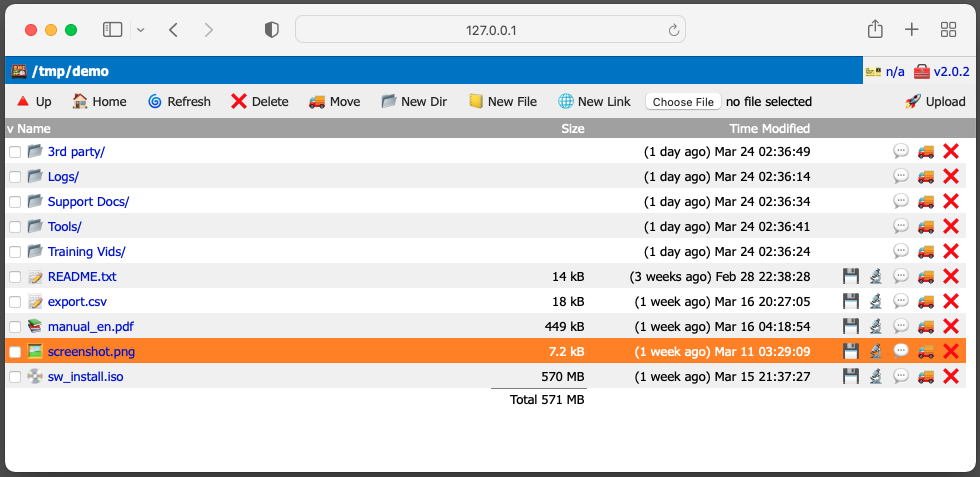
WFM is a simple, web based file manager. You can use it as a web interface for a NAS box, FTP server, a "personal cloud", document sharing site or a lightweight CMS. It allows to perform basic file and folder operations such as download, upload, rename, move, delete files and organize directory tree structure. Text files, such as markup, markdown, config, etc can be edited directly in the browser. WFM can also create and open bookmarks, link and shortcut files, etc.
No Bloat
WFM is a standalone service with a built-in web server. No need for Apache, Nginx, PHP, etc.
It runs directly from systemd, sysvinit, launchd, rc or Docker.
TLS/SSL is supported with automatic certificate generation by Lets Encrypt / Certbot, or BYOC.
The binary is statically linked, fully self contained and has zero external dependencies.
No images! All icons are unicode emojis. No JavaScript!
No frameworks! No need for Python, PHP, SQL, NodeJS, JavaScript, Node or any other bloated crapware.
WFM outputs validated HTML 4.01 without JavaScript. It works on both modern and legacy web browsers going back to Internet Explorer 1.x and Netscape 3.x. Modern browsers can optionally take advantage of a Rich Text Editor.
No config files. All configuration is entirely based of --flags, rc/init/Docker friendly.
In fact no files other than the binary are required.
If you have Go installed, you don't even need the binary, you can simply run it like this:
go run github.com/tenox7/wfm@latest --flags...
Directory tree
WFM exposes a directory tree via web based interface. The primary method of specifying
the root directory is chroot via -chroot=/dir flag, or by your service manager. For
example Systemd service file RootDirectory= directive. WFM is not intended to be used
without chroot.
For some services like Docker, a subdirectory must be used, this can be specified by
--prefix=/subdir:/ flag. A subdirectory should not be considered secure and you should
assume users can access files above the prefix up to chroot.
Deployment scenarios
Like any other web server, WFM starts the process as root in order to bind to the
privileged ports. Then setuid() to a desired user specified with -setuid=myuser.
Finally WFM performs chroot() to a directory specified with -chroot=/datadir.
Systemd
You can have either Systemd, or WFM perform chroot and setuid. If you are binding to port 80 (and/or 443), you need to start WFM as root.
You can specify Systemd User= other than root if you also use RootDirectory= for
chroot and use non privileged port (above 1024, eg. 8080), or your binary has adequate
capabilities set. Example here.
Systemd Install
To install wfm service file copy it to /etc/systemd/system/wfm.service edit the
configuration and run:
$ sudo systemctl daemon-reload
$ sudo systemctl enable --now wfm
Launchd
An example launchd service file is provided here.
FreeBSD / rc
An example rc script is provided here. Copy it to
/usr/local/etc/rc.d/wfm, then enable and configure it in /etc/rc.conf:
wfm_enable="YES"
wfm_args="-chroot=/home/ftp -setuid=ftp -addr=:80"
By default WFM starts as root to bind the privileged port and then drops to
the -setuid user. Alternatively you can avoid starting as root and let the
wfm user bind privileged ports directly with
portacl:
pkg install -y security/portacl-rc
Then in /etc/rc.conf:
portacl_users=wfm
portacl_user_wfm_tcp="http https"
portacl_user_wfm_udp="https"
portacl_enable="YES"
wfm_user="wfm"
Set wfm_user to run the daemon as that user instead of root. With portacl
granting the ports there is no need for -setuid.
Since -chroot also requires root, use a FreeBSD
jail for filesystem isolation
instead. The jail is created by the rc system at boot (as root), while WFM
runs unprivileged inside it under wfm_user.
Docker
Docker hub: tenox7/wfm:latest
Hello World:
$ docker run -d -p 8080:8080 --user 1234:1234 -v /some/host/dir:/data tenox7/wfm:latest -prefix /data:/
If not using password file, you may also need add --nopass_rw.
If you don't specify --user in Docker run, you may also need --allow_root since
WFM will be running as user id 0 inside the container.
Advanced deployment with passwords and autocert:
$ docker run -d \
      --restart=always \
      -p 80:8080 \
      -p 443:8443 \
      -v /some/host/datadir:/data \
      -v /some/dir/wfmpasswd.json:/etc/wfmusers.json
      tenox7/wfm:latest \
      -passwd /etc/wfmusers.json \
      -addr :8443 \
      -acm_addr :8080 \
      -acm_host www.snakeoil.com \
      -chroot /data \
      -setuid $(id -u):$(id -g)
Prefix
The -prefix flag takes two directories separated by a colon. The one on the
left is a filesystem directory, the one on the right is http path. The fsdir
is affected by -chroot flag. If you chroot to some directory, for example
-chroot /home/ubuntu/dir then the prefix should probably just use root dir
of that folder -prefix /:/ - which is the default. The fsdir other than root
only exists because of Docker and it's not otherwise considered safe.
The httppath part controls URL suffix, by default it's /, however you can
move it to a different path, for example "/data" or "/wfm" with the
flag -prefix=/:/httppath. This may be useful for hiding default location
or if routing from another service like reverse proxy.
Most typically you would just use the default /:/.
The -prefix flag can be repeated to expose several filesystem directories under
different http paths from a single instance:
wfm -prefix /srv/pub:/pub -prefix /srv/docs:/docs -prefix /srv:/
Each pair gets its own filesystem rooted at its fsdir. The most specific (longest)
http path is matched first, so a catch-all /:/ can coexist with more specific
prefixes, and prefixes can nest (/a/b is served by its own pair, not /a).
Matching is on path boundaries, so a /pub prefix does not capture /public.
Requests not matching any prefix return 404. Note that a prefix shadows any real
directory of the same path in a less specific pair (eg. with a /docs prefix, a
docs folder inside the /:/ fsdir is not reachable).
FastCGI
Run WFM with -fastcgi behind nginx. The http path in -prefix must match the
nginx location.
wfm -fastcgi -addr 127.0.0.1:9000 -prefix /var/www/files:/files
location /files {
    include fastcgi_params;
    fastcgi_pass 127.0.0.1:9000;
}
include fastcgi_params is all that's needed; it passes REQUEST_URI, which WFM
routes on. Add client_max_body_size 0; to the server block for large uploads.
For a unix socket use -proto unix -addr /run/wfm.sock and
fastcgi_pass unix:/run/wfm.sock;.
SSL / TLS / Auto Cert Manager
You can use WFM as a SSL / TLS / https secure web server with Lets Encrypt Auto Cert Manager. ACM will automatically obtain SSL certificate for your site as well as the keypair.
Example deployment with SSL:
ExecStart=/usr/local/sbin/wfm \
	-passwd=/usr/local/etc/wfmpasswd.json \
	-chroot=/var/www/html \
	-setuid=user \
	-addr=:443 \
	-acm_addr=:80 \
	-acm_file=/var/cache/wfm-certs.json \
	-acm_host=www.snakeoil.com
The flag -addr=:443 makes WFM listen on port 443 for https requests.
Flag -acm_addr=:80 is used for Auto Cert Manager to obtain the cert
and then redirect to port 443/https. Flag -acm_file=/var/cache/wfm-certs.json
is where the certificates and keys are stored. This file is opened before chroot.
As such it's desired for WFM to be started as root, then setuid and chroot on it's
own rather than through systemd/launchd.
The -acm_host= is a repeated flag that adds hosts to a whitelist.
ACM will only obtain certificates for whitelisted hosts. If your WFM
site has multiple names in DNS you need to add them to the whitelist.
If the https site is exposed externally outside of your firewall its
sometimes desired to have a local http (non-SSL) listener as well. To
enable this use -addr_extra=:8080 flag.
Own certificate and key
Instead of Auto Cert Manager you can supply your own PEM certificate and key
with -tls_cert and -tls_key (both required together):
wfm -addr=:443 -tls_cert=/etc/ssl/wfm.crt -tls_key=/etc/ssl/wfm.key
Concatenate any chain/intermediate certs after the leaf in the -tls_cert file.
The key must be unencrypted. Files are read before chroot(2) so they may live
outside the chroot. Autocert takes precedence if both are configured.
Authentication
Authentication is performed by HTTP Basic Auth (in future a custom login
window may be implemented instead). If no password file is specified, or
no users present in it (blank) and no hardcoded passwords are present WFM
will not ask for username/password. Auth-less mode by will be read-only
mode (like a regular web server) unless you specify -nopass_rw flag.
To enable authentication, specify password file via -passwd=/path/users.json
flag. Passwords are read on startup and therefore can be placed outside of
chroot directory. Passwords can also be hardcoded in the binary at the compile
time, se below.
User Management
Users can be managed using a built-in helper function that services the specified password json file.
Note that any changes to the password file require restart of wfm daemon
to take effect. This is because the file is read once on startup before
chroot(2) is performed.
$ wfm -passwd=/path/users.json user newfile
$ wfm -passwd=/path/users.json user add myuser rw
$ wfm -passwd=/path/users.json user add myuser rw /home/myuser
$ wfm -passwd=/path/users.json user delete myuser
$ wfm -passwd=/path/users.json user passwd myuser
$ wfm -passwd=/path/users.json user home myuser /home/myuser
The optional home path on user add, or a later user home, gives the user a
private directory. See Per-user home below.
JSON password file format
The JSON file can be edited / managed manually.
An example file is provided. The format is a simple list of users with "User", "Salt", "Hash" strings and "RW" boolean field. User is self explanatory. Salt is a short random string used to make passwords harder to crack. It can be anything but it must be different for every user. The same salt must also be passed when generating the password. Hash is a hashed salt + password string. RW boolean specifies if user has read only or read write access. The optional "Home" string is a filesystem directory that becomes the user's private prefix, see Per-user home.
Per-user home
If a user has a "Home" set, WFM automatically creates a prefix at /username
rooted at that directory, accessible only to that user. For example user foo
with "Home": "/home/foo" yields the pair /home/foo:/foo; any other
authenticated user requesting /foo gets 403 Forbidden. The user's RW flag
applies inside their home as usual.
The home path is a filesystem directory, affected by -chroot the same way as
-prefix fsdirs. Home prefixes are added alongside any -prefix flags, so a
catch-all /:/ (or no prefix at all) can coexist with per-user homes. Avoid
defining a -prefix whose http path collides with a /username home.
Binary hardcoded
Password file can also be hardcoded inside the binary at compile time.
This may be useful in embedded operations. To add hardcoded users add
entries in to users var in users.go.
Fail to ban
WFM monitors failed user login attempts and bans offending IP addresses
with an exponential backoff. This is enabled by default.
You can disable this behavior with -f2b=false flag.
For debugging fail2ban, you can enable a prefix where ban database will
be dumped for example: -f2b_dump=/dumpf2b.
Favicon.ico and Robots.txt
If favicon.ico and/or robots.txt are present in the root directory, they will
be served as any other file. In case they are not present an embedded version will
be served, if the file was compiled in. This is also useful if you don't want them
displayed in the directory listing. The embeds can be controlled in fileio.go.
Text editor
Text files can be edited directly in the browser. By default WFM serves a plain
HTML <textarea>, which works on every browser all the way back to Internet
Explorer 1.x and Netscape 3.x.
Modern browsers can optionally use CodeMirror, a
rich code editor, enabled with -textedit=codemirror.
Flags
Usage of wfm:
  -acm_addr string
        autocert manager listen address, eg: :80
  -acm_file string
        autocert cache, eg: /var/cache/wfm-acme.json
  -acm_host value
        autocert manager allowed hostname (multi)
  -addr string
        Listen address, eg: :443 (default ":8080")
  -addr_extra string
        Extra non-TLS listener address, eg: :8081
  -allow_root
        allow to run as uid=0/root without setuid
  -cache_ctl string
        HTTP Header Cache Control (default "no-cache")
  -chroot string
        Directory to chroot to
  -codemirror_url string
        CodeMirror CDN base url, npm layout, tracks latest 5.x (-textedit=codemirror) (default "https://cdn.jsdelivr.net/npm/codemirror@5")
  -f2b
        ban ip addresses on user/pass failures (default true)
  -f2b_dump string
        enable f2b dump at this prefix, eg. /f2bdump (default no)
  -form_maxmem int
        maximum memory used for form parsing, increase for large uploads (default 10485760)
  -html-templates string
        directory of html templates overriding the built-in ones
  -list_archive_contents
        list contents of archives (expensive!)
  -logfile string
        Log file name (default stdout)
  -nopass_rw
        allow read-write access if there is no password file
  -passwd string
        wfm password file, eg: /usr/local/etc/wfmpw.json
  -prefix value
        Prefix for WFM access /fsdir:/httppath eg.: /var/files:/myfiles (multi, default /:/)
  -proto string
        tcp, tcp4, tcp6, etc (default "tcp")
  -rate_limit int
        rate limit for upload/download in MB/s, 0 no limit
  -setuid string
        Username or uid:gid pair to setuid to
  -show_dot
        show dot files and folders
  -site_name string
        local site name to display (default "WFM")
  -textedit string
        text editor in modern browsers: textarea or codemirror (default "textarea")
  -tls_cert string
        TLS certificate file (PEM), eg: /etc/ssl/wfm.crt
  -tls_key string
        TLS private key file (PEM), eg: /etc/ssl/wfm.key
  -txt_le string
        default line endings when editing text files (default "LF")
History
WFM begun its life around 1994 as a Perl CGI script for CERN httpd server. It was developed to allow uploading logs, traces, dumps and other case data by support engineers and customers. Later rewritten in C language, when CGIC library and Apache httpd were released. Up until 2015, it has been a closed source commercial application used for lightweight document management and supported by a few customers. It has now been open sourced. In 2022 WFM has been rewritten in Go as a stand-alone application with a built-in web server for modern deployment scenarios.
Legal
- Copyright (c) 1994-2026 by Antoni Sawicki
- Licensed under Apache 2.0