
IDE for Zephyr

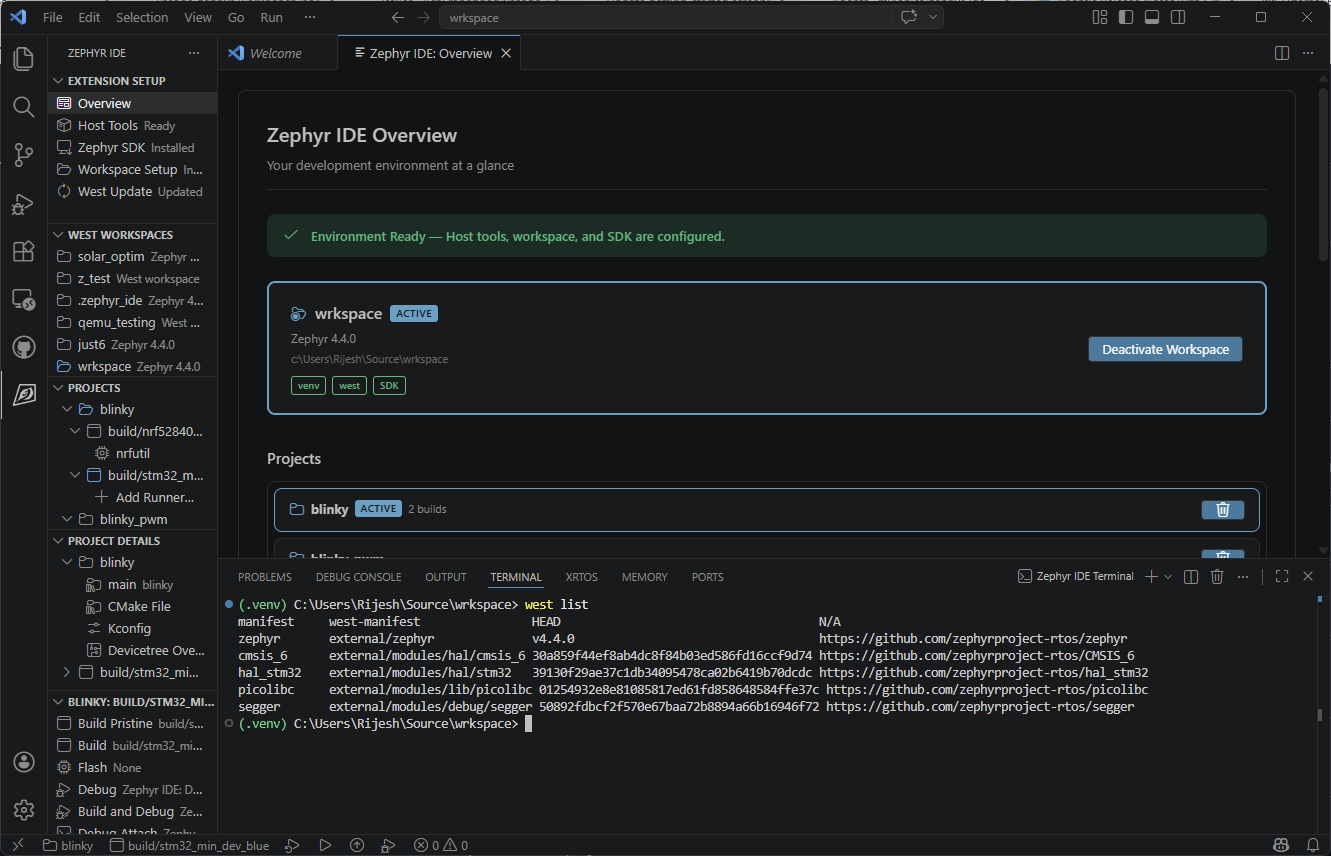
A Visual Studio Code extension for Zephyr RTOS embedded firmware development. Build, flash, and debug Zephyr projects for ARM Cortex-M, RISC-V, Xtensa, and x86 targets — including nRF52, nRF5340, STM32, ESP32, Raspberry Pi Pico, and any other board supported by Zephyr — without leaving VS Code. Automates host tool installation, Zephyr SDK management via west sdk, west workspace setup, and Cortex-Debug integration so you can go from zero to a running build in minutes.
Works with nRF Connect SDK (NCS), plain Zephyr, or any west-based manifest. Also integrates with Docker, devcontainers, and existing Zephyr installations via ZEPHYR_BASE detection.
Install from the Visual Studio Code Marketplace or the Open VSX Registry. An extension pack is also available on the VS Code Marketplace and Open VSX, bundling Cortex-Debug, C/C++, Serial Monitor, Devicetree LSP, and CMake support.
Formerly known as Zephyr IDE.
You can read about the motivation behind the project here.
Why IDE for Zephyr
- Automated host tool install — follows the Zephyr Getting Started Guide on Ubuntu, macOS, and Windows. Skip it if you already have the tools installed.
- Automated SDK install — drives
west sdkto install and manage SDK versions and toolchains. - Full Cortex-Debug integration — built-in launch templates for ST-Link, J-Link, OpenOCD, and Black Magic Probe, plus helper commands that resolve project, build, ELF, GDB, and toolchain paths from your active build.
- Multiple Zephyr workspaces — register several west workspaces and switch between them seamlessly without reopening VS Code.
- Team-shareable projects — projects, builds, runner profiles, KConfig, devicetree overlays, and per-build west/CMake args live in a human-readable
zephyr-ide.jsonyou can commit. - Guided project + build creation — add an existing app or copy from a Zephyr sample, then add as many builds as you need and bind each to a Runner Profile.
- Twister test integration — add, run, and reconfigure Twister tests from the same UI as builds.
- Cross-platform — Linux, macOS, and Windows.
Features
Workspace setup & SDK management
- Installs host tools (CMake, Python 3, Ninja, DTC, gcc) on supported platforms
- Sets up west via built-in
west.ymltemplates or your own manifest - Clones existing west or IDE for Zephyr workspaces from Git
- Adopts existing
.westfolders or external Zephyr installations viaZEPHYR_BASE - Installs and manages Zephyr SDK versions and per-architecture toolchains through
west sdk - Register and switch between multiple west workspaces from one VS Code window
Projects & builds
- Add existing applications or create new ones from Zephyr samples
- Multiple projects per workspace, multiple builds per project, shared Runner Profiles across builds
- Per-project and per-build KConfig and devicetree overlay files
- Per-build board selection, Runner Profile bindings, and west / CMake argument overrides
- Custom project / build variables surfaced through launch configurations
- Configuration stored in human-readable
zephyr-ide.jsonfor version control
Build, flash & debug
- Build, build pristine, clean, and flash from the status bar or project panel
- Concurrent builds with per-target locking
- Built-in split debug providers:
zephyr-ide-cortex(cortex-debug/bmp-debug translation) andzephyr-ide-west(west debugserver bridge) — no per-runner launch.json required - Runner Profiles bundle Flash / Debug / Attach binds (Zephyr runner with args, or
launch.jsonentry) — with auto-fallback torunners.yamldefaults - Profiles live at user scope (
zephyr-ide.runnerProfilessetting) or workspace scope (.vscode/zephyr-ide.json) and are edited from a dedicated CRUD webview panel - Cortex-Debug launch templates for ST-Link, J-Link, OpenOCD, and Black Magic Probe
- Launch helper commands that resolve project, build, ELF, GDB, toolchain, and board paths
- Debug Select configuration for picking which build to debug at launch time
- Multi-root and
.code-workspaceaware debug session resolution
Productivity
- Native VS Code tree view for projects, builds, runner profiles, and tests
- Active project status bar control with automatic targeting based on the open file
- Build Dashboard — interactive memory explorer, Kconfig viewer, and devicetree viewer
- MenuConfig and GuiConfig editors
- ROM and RAM usage reports
- DTSh devicetree shell
- Integrated west terminal for ad-hoc commands
- Twister test panel for adding, running, and reconfiguring tests
Getting Started
The full documentation is available at zephyr-ide.mylonics.com.
Video tutorials

A reference sample project is also available.
Requirements
The extension can install host tools (CMake, Python 3, Ninja, Devicetree Compiler, gcc) automatically on Ubuntu/Debian, macOS, and Windows. On other platforms, install them via your package manager — see the host tools documentation and consider opening an issue or PR to have the IDE do it automatically for you in the future.
If Zephyr is already installed on your machine (including nRF Connect SDK, Zephyr SDK, or any west-managed workspace), set ZEPHYR_BASE and the extension will use it directly. See External Environments.
Supported hardware
Any board supported by Zephyr RTOS, including: Nordic nRF52832/nRF52840/nRF5340, STM32 (all families), ESP32/ESP32-S3, Raspberry Pi Pico (RP2040), i.MX RT, NXP LPC, Microchip SAM, TI CC13xx/CC26xx, and hundreds more. Simulation targets including native_sim and QEMU are also fully supported.
Debug architecture
The extension now exposes two explicit debug types:
zephyr-ide-cortex— translatesrunners.yamlto acortex-debug/bmp-debugsession for native cortex-debug runners.zephyr-ide-west— spawnswest debugserverand connects cortex-debug asservertype: "external".
Most boards work with no custom fields beyond:
{ "type": "zephyr-ide-cortex", "request": "launch" }
The Zephyr runner is mapped via one of three paths:
| Path | Runners | How it works |
|---|---|---|
| Native | jlink, openocd, pyocd, stlink, stm32cubeprogrammer-stlink, blackmagicprobe/bmp, qemu |
cortex-debug speaks the GDB protocol to its built-in server. Zephyr IDE lifts runners.yaml args into the matching cortex-debug fields (configFiles, device, speed, interface, BMPGDBSerialPort, …). |
| External bridge | nrfjprog, linkserver, esp32, stm32cubeprogrammer, probe-rs |
Zephyr IDE spawns west debugserver --runner <r> --build-dir <b>, parses the listening host:port from its stdout, and hands cortex-debug a servertype: "external" config pointing at it. The server child is killed when the debug session ends. |
| Unsupported | flash-only runners (dfu-util, uf2, bossac, teensy, …) |
The provider surfaces an actionable error listing the rejected runners. Switch to a debug-capable runner or write a hand-rolled cortex-debug config. |
Note on test coverage: Not all debug runner paths and hardware combinations have been exercised. As a general rule — if you can start a debug session using a hand-written Cortex-Debug
launch.json, thezephyr-ide-cortexorzephyr-ide-westdebug type should also work for that same setup. If a runner path that should work gives you trouble, you can always fall back to a manual Cortex-Debug configuration in yourlaunch.jsonin the meantime. Please raise an issue on GitHub so it can be tracked and fixed.
Field precedence
When the same cortex-debug field can come from multiple sources, the following order applies (last wins):
runners.yaml(the build-system source of truth).- The active runner profile's
extraArgs. - The runner profile's
bindOverrides[debug].extraArgs(per-build override). - The user's
launch.jsonentry — any cortex-debug field set there overrides everything except:type,request,name,runner, andrtos(Zephyr IDE controls these).
Probe overrides for OpenOCD and pyOCD
The runner-profile editor exposes a Probe / Interface dropdown for the
openocd and pyocd runners. Selecting a probe writes the corresponding
override into the profile's extraArgs (--openocd-config interface/<probe>.cfg
for OpenOCD, --probe=<type> for pyOCD), and Zephyr IDE filters any
conflicting interface/*.cfg entry that came from runners.yaml so the
chosen probe is not double-loaded. To use a probe not in the dropdown,
type its full cfg path or pyOCD probe URL into the Extra args field
directly — the override semantics are identical.
West debugserver curated args + passthrough
zephyr-ide-west provides curated fields for common west flags. Runner-specific options use unprefixed names (e.g. device, speed, config) while older common fields keep the west prefix for backward compatibility.
Common / Global:
westPort, westDevId, westToolOpt, westDomain, westFile, westElfFile, westHexFile, westBinFile, westGdbPort, westTclPort, westTelnetPort, westNoLoad, westNoReset, westRebuild, westNoRebuild, serial, interface, frequency, connectUnderReset, erase, noErase, reset, rttAddress, tui
openocd:
config, flashAddress, verify, verifyOnly, noHalt, noInit, noTargets, targetHandle, rttPort, rttServer, gdbClientPort, gdbInit
probe-rs:
chip, protocol, speed, gdbHost
jlink:
batch, device, loader, dtFlash, resetType, protocol, speed, gdbHost
For full CLI coverage, westArgs is still appended verbatim after curated args.
External GDB servers
To connect to an already-running GDB server (Segger Ozone, a vendor IDE,
a manually-started west debugserver, …) supply gdbTarget in
launch.json:
{
  "name": "Zephyr IDE: External GDB",
  "type": "zephyr-ide-west",
  "request": "launch",
  "runner": "nrfjprog",
  "gdbTarget": "127.0.0.1:2331"
}
When gdbTarget is present, Zephyr IDE suppresses its own bridge spawn
and uses the user-supplied endpoint directly.
Known Issues
- Dev containers in WSL with Windows folders: keep your workspace inside the Linux file system (e.g.
/home/user/project) rather than/mnt/c/.... This is awest boardslimitation.
Release Notes
See CHANGELOG.md for the full release history. Highlights for the 4.0 series are summarized in What's New in 4.0.
Development
See the Developer Guide for instructions on building, debugging, and contributing.