
zLayerManager
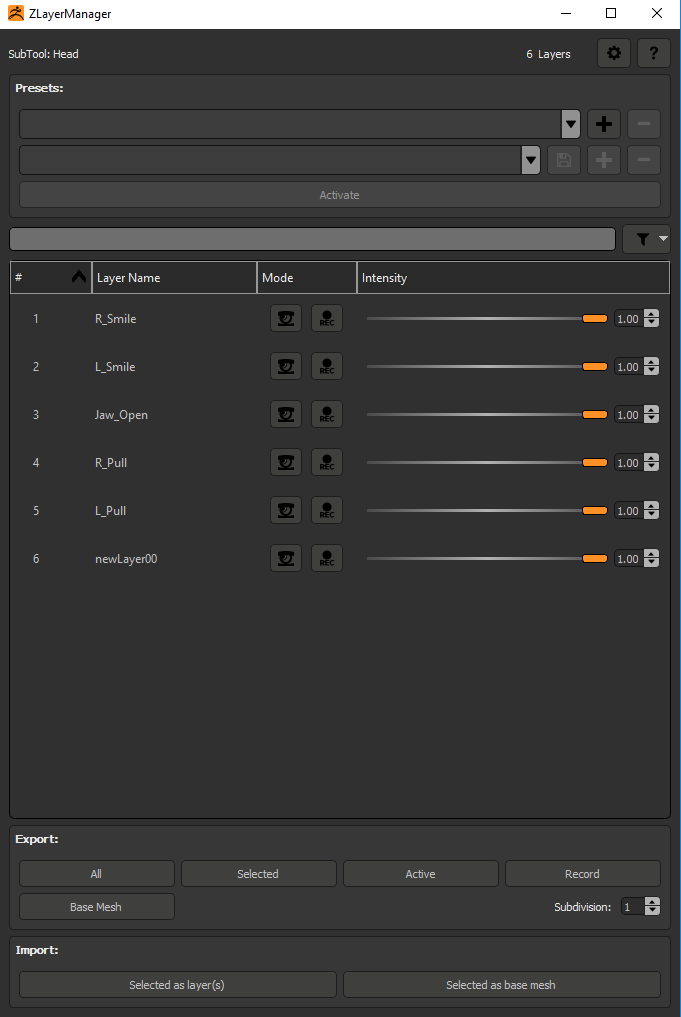
Description
Help working with layers in zBrush with a custom user interface.
Maya
Setuping maya to be able to import blendshape directly:
>>> # add zlm script folder to sys path
>>> import sys
>>> sys.path.append(r"{path to dist}\ZlmData\app\maya")
>>> import zlm
>>> # open communication port so maya can receive command
>>> zlm.open_port()
Notes: You can specify any import callback, in this exemple, default import callback are used. When importing a blendshape, it check if there is a mesh with the same name in the scene, if soo, it will update it vertex position with the new mesh and delete the new mesh. Oterwise, it will keep the new imported mesh in the scene.
Set up development environment
Installing python
You will need a python 3.7.9 installation to execute the scripts.
Creating python virtual environment
> python -m venv venv
> venv\Scripts\activate.bat
> python -m pip install -r requirements.txt
To Activate the virtual environment
On windows:
> zlm_env\Scripts\activate.bat
On Linux:
> source zlm_env/bin/activate
To Deactivate the virtual environment
Enter deactivate in the console.
Build
To build simply run the build.py script. Everything should be ready under dist/.
Finally, copy the content of \build\zlm and \build\zlm_ui in dist\ZlmData
Dist folder
Download zfileUtils from this folder and add it to dist/ZlmData/ZFileUtils.
Also download ZSOCKET. This is used to communicate with DCC.
It should look like that:
|-- ZlmData
|   |-- ZFileUtils
|   |  |-- ZFileUtils.lib
|   |  |-- ZFileUtils.dll
|   |-- app
|   |-- ZSOCKET.dll
Dev
Make sure to set the good zbrush path in src\zlm_settings.py
Environment Variable
ZLM_SETTINGS_PATH: override zlm settings folder ZLM_PRESET_PATH: ';' seperated list of preset folder.