
💸 AI Expense Tracker — n8n + Google Drive + Sheets



Automatically extract and organize expenses from bank statements (PDFs/images) into Google Sheets using AI, n8n, and a modern web interface. One-command Docker setup.
📘 Introduction
AI Expense Tracker is a low-code automation built with n8n that leverages OpenAI, Google Drive, and Google Sheets to automate personal finance tracking.
Two ways to use it:
- 🌐 Web App – Upload receipts and bank statements (PDFs or images) via a simple Next.js interface
- 📁 Google Drive – Drop files into a folder and let automation handle the rest
Just upload your bank statement PDF or receipt image, and the workflow will:
- Extract the data using AI (supports PDFs and images).
- Categorize each expense intelligently.
- Append the results to a structured Google Sheet dashboard.
Inspired by "El Hombre Más Rico de Babilonia" and "La Bolsa o la Vida", this project promotes financial awareness and digital independence through automation.
✨ Key Features
- 🐳 Docker Support – One-command setup with Docker Compose. Works on any machine.
- 🌐 Web App Interface – Upload receipts and bank statements via a simple web UI (supports PDFs and images).
- Google Drive Integration – Drop your bank statement PDFs into a folder, and the system takes it from there.
- AI-Powered Parsing – Uses GPT-4o to read and structure your expenses into JSON.
- Categorization Agent – Classifies expenses into fixed categories (Supermarket, Gastronomy, etc.).
- Automatic Google Sheets Sync – Generates a new "Expenses {Month}" tab and appends all transactions.
- Open Source – Fully local, no external servers, and zero maintenance cost.
🚀 Quick Start (Docker - Recommended)
The easiest way to get started is with Docker Compose. This will set up both the n8n automation engine and the web app in one command.
Prerequisites
- Docker and Docker Compose installed.
- A Google Cloud Project with:
- Google Drive API enabled.
- Google Sheets API enabled.
- A Google Sheet based on the provided template (
/templates/balance.xlsx).
Steps
-
Clone the repository
git clone https://github.com/matiasvallejosdev/ai-expense-tracker-n8n.git cd ai-expense-tracker-n8n -
Configure environment variables
cp .env.example .envEdit
.envand add your Google Sheets dashboard URL:NEXT_PUBLIC_DASHBOARD_URL=https://docs.google.com/spreadsheets/d/YOUR_SPREADSHEET_ID/edit -
Create the n8n volume
docker volume create n8n_data -
Start all services
docker-compose up -d -
Access the applications
- Web App: http://localhost:3000 (Upload PDFs and images of receipts/statements)
- n8n Dashboard: http://localhost:5678 (Configure workflows and credentials)
-
Configure n8n credentials
- Go to http://localhost:5678
- Import the workflow from
/n8n/ai-expense-tracker-n8n.json - Set up Google Drive OAuth2 and Google Sheets OAuth2 credentials
- Use the redirect URI:
http://localhost:5678/rest/oauth2-credential/callback
-
Upload your first expense
- Go to http://localhost:3000
- Upload a bank statement PDF or receipt image (JPG, PNG)
- Watch it automatically appear in your Google Sheet!
📖 Need help with Docker? Check out the Docker Guide for detailed explanations.
Managing Your Docker Application
# Stop all services
docker-compose down

# View logs
docker-compose logs -f

# View logs for specific service
docker-compose logs -f web-app
docker-compose logs -f n8n

# Restart services
docker-compose restart

# Rebuild and restart (after code changes)
docker-compose up --build -d

# Stop and remove everything (including volumes - ⚠️ deletes n8n data)
docker-compose down -v
⚙️ Alternative Setup (Manual n8n)
If you prefer to run n8n manually without Docker:
Prerequisites
- n8n installed locally.
- A Google Cloud Project with:
- Google Drive API enabled.
- Google Sheets API enabled.
- A Google Sheet based on the provided template (
/templates/balance.xlsx).
Steps
- Clone the repository
git clone https://github.com/matiasvallejosdev/ai-expense-tracker-n8n.git cd ai-expense-tracker-n8n - Import the workflow
- Go to your local n8n dashboard.
- Import
/n8n/ai-expense-tracker-n8n.json.
- Configure credentials
- In n8n → Credentials, create:
Google Drive OAuth2Google Sheets OAuth2
- Use the redirect URI:
http://localhost:5678/rest/oauth2-credential/callback - Follow Google’s guide for OAuth setup: Create OAuth Client ID
- In n8n → Credentials, create:
- Connect your template
- Upload the provided
/templates/balance.xlsxto your Google Drive. - Rename it if you wish, but keep a tab named “Expenses Model”.
- Upload the provided
- Set your folder trigger
- In the workflow, edit the node Google Drive Trigger and replace the folder ID with your own.
- Run it
- Upload a PDF statement into that folder.
- Watch your Google Sheet auto-populate with parsed transactions!
🗂️ Google Drive Folder (Input)
This is where you should upload your bank statement PDFs. 📁 Open the Drive Folder
Each file you drop there (e.g. statement_visa.pdf) will trigger the workflow and automatically process it.
📊 Google Sheets Template (Output)
All categorized data will be appended automatically to this Google Sheets template: 📈 Open the Google Sheets Template
Or click Make a Copy to create your own editable version.
🧩 Detailed Setup (Developers)
Tech Stack
Backend (n8n Workflow)
- n8n workflow automation
- OpenAI GPT-4o for text extraction and categorization
- Google Drive API
- Google Sheets API
Frontend (Web App)
- Next.js 16 (React 19)
- TypeScript
- Tailwind CSS 4
- Shadcn/ui components
- React Hook Form + Zod validation
- Docker multi-stage builds
Customization
-
Customize Agents
AI Agent→ parses raw text from PDF/image.AI Agent – Structure Data→ converts it into a valid JSON array.
-
Processing Flow
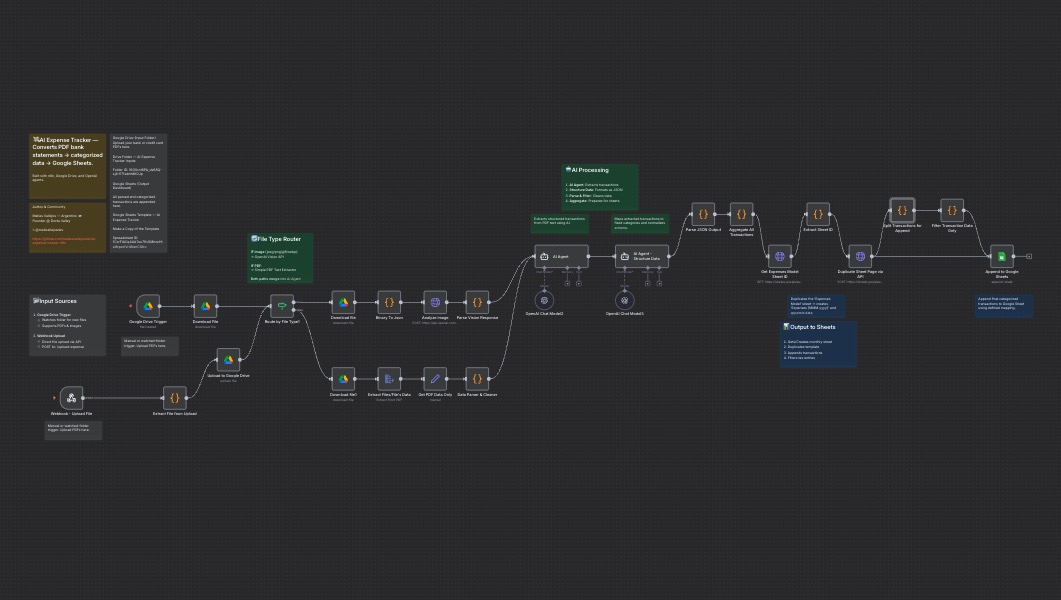
- Web Upload/Google Drive Trigger → Download File → Extract Text (OCR for images) → AI Parse → JSON Normalize → Filter Transactions → Append to Sheet.
-
Script Filters
- Automatically ignores tax lines (
IVA,Percepciones,Impuesto de Sellos, etc.) and USD duplicates.
- Automatically ignores tax lines (
-
Web App Development
cd web-app
npm install
npm run dev
The app will be available at http://localhost:3000
-
Output Schema
Field Type Description Monthstring Month extracted from transaction date Datestring ISO date (YYYY-MM-DD) Conceptstring Transaction detail Payment_Methodstring Credit Card / Debit Card / Cash Categorystring Expense category Amountnumber Value of transaction Currencystring ARS / USD
📊 Data Model
Fixed Taxonomy
| Currency | Payment Method | Expense Categories | Income Categories |
|---|---|---|---|
| ARS, USD | Credit Card, Debit Card, Cash | Supermarket, Gastronomy, Services, Fashion, Transport, Technology, Home, Education, Sports, ... | Salary, Freelancing, Investment, Business, Extra |
You can extend these categories directly in the AI prompts or in the Google Sheet data validation lists.
🤖 Architecture Overview
Input Methods
Option 1: Web App (Next.js)
- User uploads file via web interface (http://localhost:3000)
- File sent to n8n webhook endpoint
- n8n processes the file
Option 2: Google Drive Trigger
- User drops file in Google Drive folder
- n8n watches folder and detects new files
- n8n downloads and processes the file
Processing Pipeline (Both Methods)
- File Input → Web upload or Google Drive trigger
- Extract File Data → Converts PDF/image to text using OCR and AI
- Data Parser & Cleaner → Formats the raw text
- AI Agent (GPT-4o) → Extracts transactions from text
- AI Agent – Structure Data → Converts to JSON array
- Parse JSON Output → Validates structure
- Aggregate → Duplicate Sheet → Append to Sheet → Final output in your balance template
Everything runs locally on your machine through Docker — your data stays 100% private.
Docker Services
- n8n (port 5678) – Workflow automation engine
- web-app (port 3000) – Next.js frontend for file uploads
Both services communicate over a Docker bridge network.
💡 Usage
Using the Web App (Recommended)
- Open the web interface at http://localhost:3000
- Upload your expense document:
- ✅ Bank statement PDFs
- ✅ Receipt images (JPG, PNG)
- ✅ Ticket photos from your phone
- Wait for AI processing (usually 5-10 seconds)
- Check your Google Sheet – new transactions appear automatically!
Using Google Drive Trigger (Alternative)
-
Upload PDF → Wait for execution → Open your Google Sheet.
-
The system auto-creates a new sheet for each month:
Expenses Oct 2025 -
Filter, analyze, or connect to dashboards.
-
Works perfectly with the included balance template dashboard.
🤝 Contributing
Contributions are welcome! If you want to improve parsing logic, add new categories, optimize the workflow, or enhance the web app:
- Fork the repository.
- Create a feature branch.
- Make your changes:
- n8n workflows: Edit JSON files in
/n8n/ - Web app: Edit files in
/web-app/ - Docker setup: Update
docker-compose.ymlorDockerfile
- n8n workflows: Edit JSON files in
- Test your changes with Docker:
docker-compose up --build - Commit and push your changes.
- Open a Pull Request.
Guidelines:
- Include a redacted PDF/image example if your update changes extraction logic
- Test both input methods (web app and Google Drive) if modifying the processing pipeline
- Update the README if you add new features or change setup steps
📞 Contact
If you have questions, suggestions, or want to collaborate:
- Name: Matías Vallejos
- 🌐 matiasvallejos.com
- 𝕏 @mativallejosdev
📄 License
This project is open source and available under the MIT License.
🧠 Inspiration
“Control your money, or your money will control you.” — La Bolsa o la Vida
“Start thy purse to fattening.” — El Hombre Más Rico de Babilonia