
Video SDK for Next JS



At Video SDK, we’re building tools to help companies create world-class collaborative products with capabilities of live audio/videos, compose cloud recordings/rtmp/hls and interaction APIs
Demo App
Check out demo here
Features
- Real-time video and audio conferencing
- Enable/disable camera
- Mute/unmute mic
- Chat
- Raise hand
- Screen share
- Recording
Setup Guide
-
Sign up on VideoSDK and visit API Keys section to get your API key and Secret key.
-
Get familiarized with API key and Secret key
-
Get familiarized with Token
Prerequisites
- React Js 16 or later
- Node 10 or later
- Valid Video SDK Account
Run the Sample App
Step 1: Clone the sample project
Clone the repository to your local environment.
git clone https://github.com/videosdk-live/videosdk-rtc-nextjs-sdk-example.git
Step 2: Copy the .env.example file to .env file.
Open your favorite code editor and copy .env.example to .env file.
cp.env.example.env;
Step 3: Modify .env file
Generate temporary token from Video SDK Account.
NEXT_PUBLIC_VIDEOSDK_TOKEN = "TEMPORARY-TOKEN";
Step 4: Install the dependecies
Install all the dependecies to run the project.
npm install
Step 5: Run the Sample App
Bingo, it's time to push the launch button.
npm run start
Key Concepts
-
Meeting- A Meeting represents Real time audio and video communication.Note : Don't confuse with Room and Meeting keyword, both are same thing 😃 -
Sessions- A particular duration you spend in a given meeting is a referred as session, you can have multiple session of a particular meetingId. -
Participant- Participant represents someone who is attending the meeting's session,local partcipantrepresents self (You), for this self, other participants areremote participants. -
Stream- Stream means video or audio media content that is either published bylocal participantorremote participants.
Token Generation
Token is used to create and validate a meeting using API and also initialise a meeting.
🛠️ Development Environment:
- You may use a temporary token for development. To create a temporary token, go to VideoSDK dashboard .
🌐 Production Environment:
- You must set up an authentication server to authorise users for production. To set up an authentication server, refer to our official example repositories. videosdk-rtc-api-server-examples
Note :
Development environment tokens have a 7-day expiration period.
API: Create and Validate meeting
create meeting- Please refer this documentation to create meeting.validate meeting- Please refer this documentation to validate the meetingId.
Initialize a Meeting
- You can initialize the meeting using
MeetingProvider. Meeting Provider simplifies configuration of meeting with by wrapping up core logic withreact-context.
<MeetingProvider
  config={{
    meetingId: "meeting-id",
    micEnabled: true,
    webcamEnabled: true,
    name: "Participant Name",
    notification: {
      title: "Code Sample",
      message: "Meeting is running.",
    },
    participantId: "xyz",
  }}
  token={"token"}
  joinWithoutUserInteraction // Boolean
></MeetingProvider>
Enable/Disable Local Webcam
const onPress = () => {
  // Enable Webcam in Meeting
  meeting?.enableWebcam();

  // Disable Webcam in Meeting
  meeting?.disableWebcam();
};
Change Local Webcam
const onPress = () => {
const webcams = await meeting?.getWebcams(); // returns all webcams

const { deviceId, label } = webcams[0];

meeting?.changeWebcam(deviceId);
}
Mute/Unmute Local Audio
const onPress = () => {
  // Enable Mic in Meeting
  meeting?.unmuteMic();

  // Disable Mic in Meeting
  meeting?.muteMic();
};
Change Local Mic
const onPress = () => {
const mics = await meeting?.getMics(); // returns all mics

const { deviceId, label } = mics[0];

meeting?.changeMic(deviceId);
}
Chat
- The chat feature allows participants to send and receive messages about specific topics to which they have subscribed.
// importing usePubSub hook from react-sdk
import { usePubSub } from "@videosdk.live/react-sdk";

// CHAT Topic
const { publish, messages } = usePubSub("CHAT");

// publish message
const sendMessage = () => {
  const message = "Hello People!";
  publish(message, { persist: true });
};

// get latest messages
console.log("Messages : ", messages);
Raise Hand
- This feature allows participants to raise hand during the meeting.
// importing usePubSub hook from react-sdk
import { usePubSub } from "@videosdk.live/react-sdk";

// RAISE_HAND Topic
const { publish } = usePubSub("RAISE_HAND");

// Publish Message
const RaiseHand = () => {
  publish("Raise Hand");
};
Share Your Screen
- This featute allows participant to share either the complete screen, a specific window or, a browser tab.
const onPress = () => {
  // Enabling ScreenShare
  meeting?.enableScreenShare();

  // Disabling ScreenShare
  meeting?.disableScreenShare();
};
Recording
- Record meeting allows participants to record video & audio during the meeting. The recording files are available in developer dashboard. Any participant can start / stop recording any time during the meeting.
const onPress = () => {
  // Start Recording
  meeting?.startRecording(webhookUrl, awsDirPath);

  // Stop Recording
  meeting?.stopRecording();
};
Leave or End Meeting
const onPress = () => {
  // Only one participant will leave/exit the meeting; the rest of the participants will remain.
  meeting?.leave();

  // The meeting will come to an end for each and every participant. So, use this function in accordance with your requirements.
  meeting?.end();
};
Meeting Event callbacks
By registering callback handlers, VideoSDK sends callbacks to the client app whenever there is a change or update in the meeting after a user joins.
function onMeetingJoined() {
  // This event will be emitted when a localParticipant(you) successfully joined the meeting.
  console.log("onMeetingJoined");
}
function onMeetingLeft() {
  // This event will be emitted when a localParticipant(you) left the meeting.
  console.log("onMeetingLeft");
}
function onParticipantJoined(participant) {
  // This event will be emitted when a new participant joined the meeting.
  // [participant]: new participant who joined the meeting
  console.log(" onParticipantJoined", participant);
}
function onParticipantLeft(participant) {
  // This event will be emitted when a joined participant left the meeting.
  // [participantId]: id of participant who left the meeting
  console.log(" onParticipantLeft", participant);
}
const onSpeakerChanged = (activeSpeakerId) => {
  // This event will be emitted when any participant starts or stops screen sharing.
  // [activeSpeakerId]: Id of participant who shares the screen.
  console.log(" onSpeakerChanged", activeSpeakerId);
};
function onPresenterChanged(presenterId) {
  // This event will be emitted when a active speaker changed.
  // [presenterId] : Id of active speaker
  console.log(" onPresenterChanged", presenterId);
}
function onRecordingStarted() {
  // This event will be emitted when recording of the meeting is started.
  console.log(" onRecordingStarted");
}
function onRecordingStopped() {
  // This event will be emitted when recording of the meeting is stopped.
  console.log(" onRecordingStopped");
}

const { meetingId, meeting, localParticipant } = useMeeting({
  onMeetingJoined,
  onMeetingLeft,
  onParticipantJoined,
  onParticipantLeft,
  onSpeakerChanged,
  onPresenterChanged,
  onRecordingStarted,
  onRecordingStopped,
});
Participant Events Callback
By registering callback handlers, VideoSDK sends callbacks to the client app whenever a participant's video, audio, or screen share stream is enabled or disabled.
  function onStreamEnabled(stream) {
    // This event will be triggered whenever a participant's video, audio or screen share stream is enabled.
    console.log(" onStreamEnabled", stream);
  }
  function onStreamDisabled(stream) {
    // This event will be triggered whenever a participant's video, audio or screen share stream is disabled.
    console.log(" onStreamDisabled", stream);
  }
  function onMediaStatusChanged(data) {
    // This event will be triggered whenever a participant's video or audio is disabled or enabled.
    const { kind, newStatus} = data;

    console.log("onMediaStatusChanged", kind,newStatus)

  }

  const {
    displayName
    ...
  } = useParticipant(participantId,{
    onStreamEnabled,
    onStreamDisabled,
    onMediaStatusChanged,
  });
If you want to learn more about the SDK, read the Complete Documentation of React VideoSDK
Project Description
Note :
- main branch: Better UI with basic features.
Project Structure
1. Create or join Meeting
-
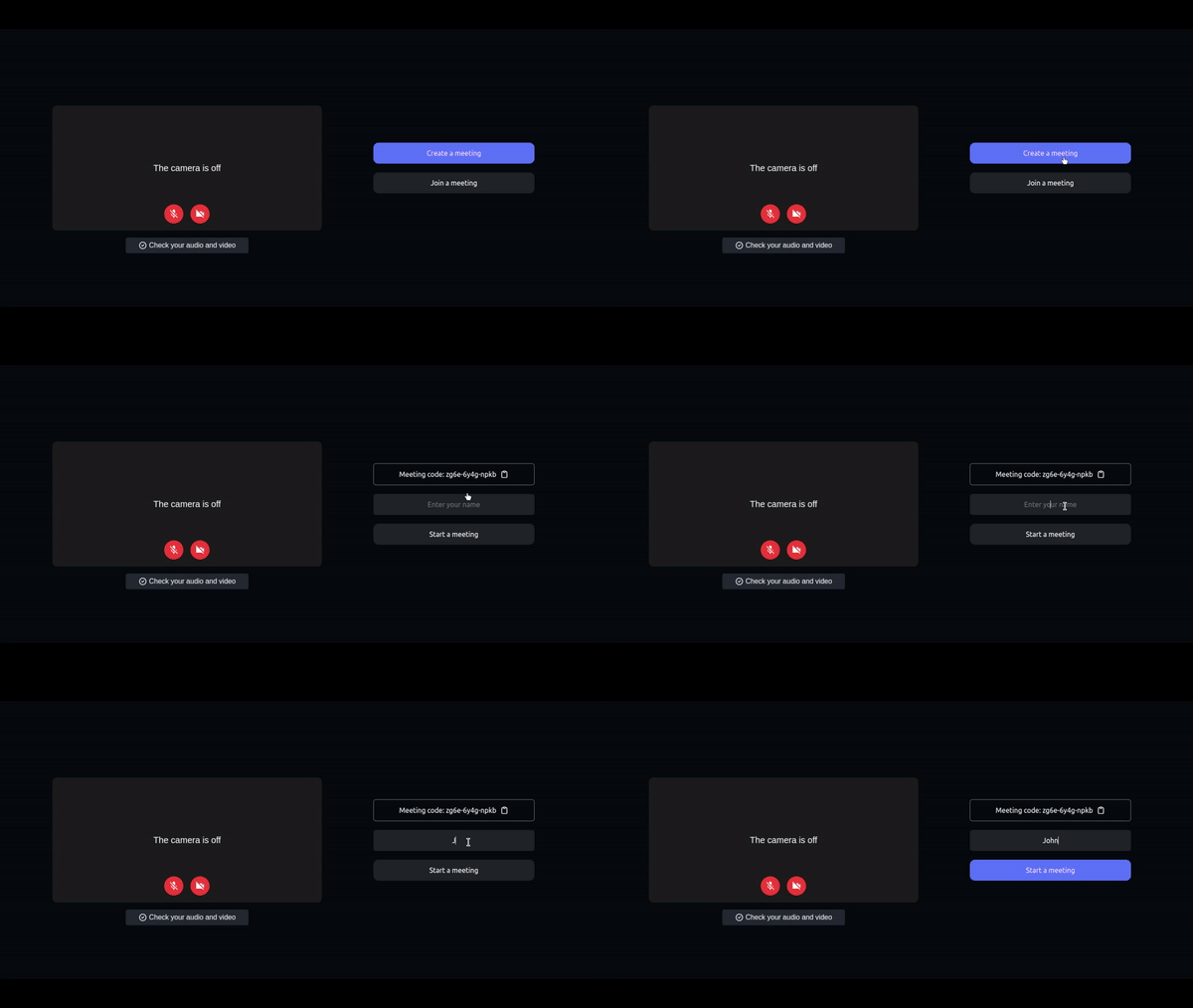
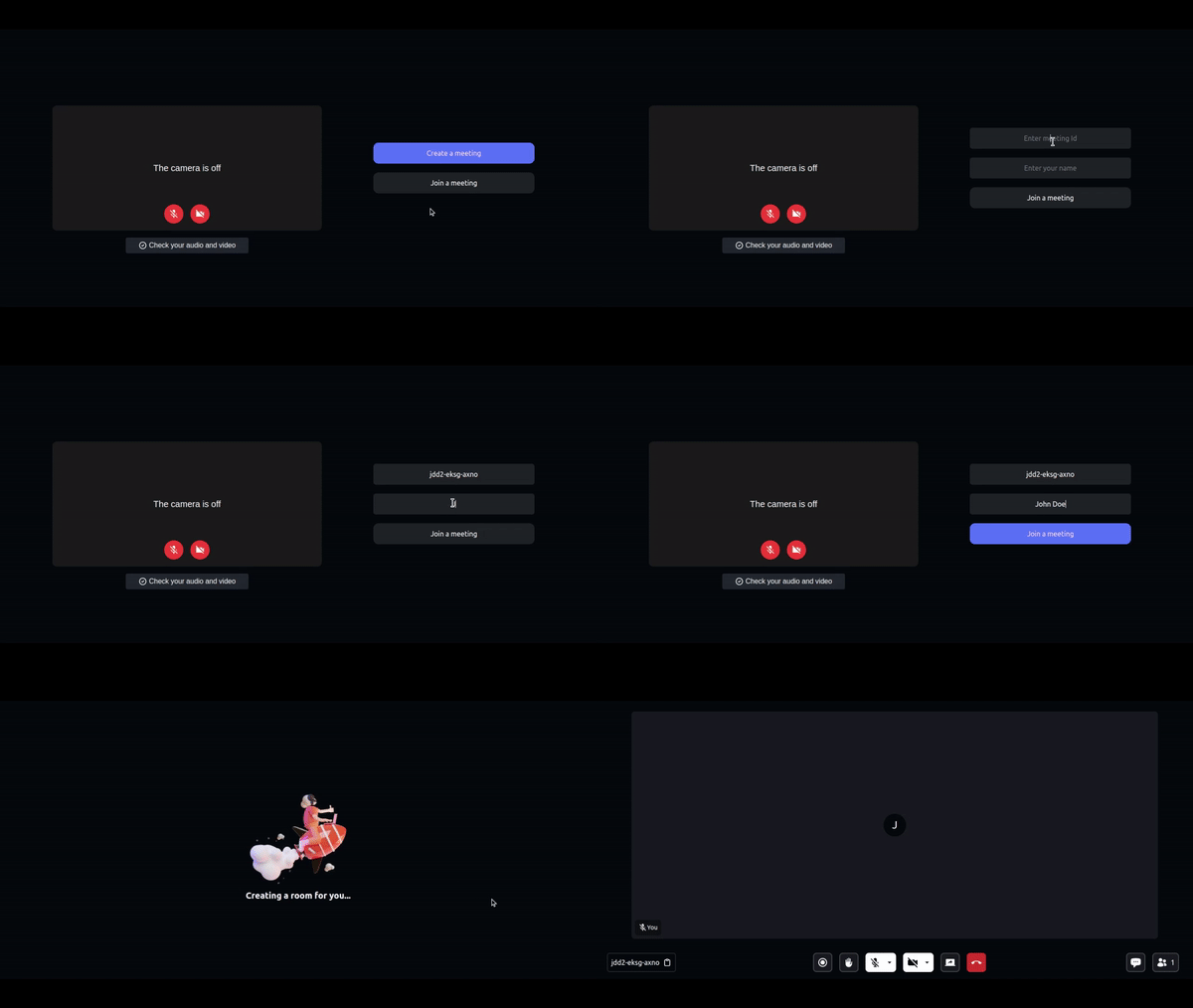
components/JoiningScreen.js: It shows the user with the option to create or join a meeting and to initiate webcam and mic status. -
api.js: It includes all the API calls for create and validate meeting. -
If
Create Meetingis clicked, it will show following:Meeting code- This meeting code you can copy and share with other participants that wants to join meeting.TextField for ParticipantName- This text field will contain name of the participant.Join Meeting Button- This button will call api to join meeting with meetingId that participant want to join.
-
If
Join Meetingis clicked, it will show following:TextField for MeetingId- This text field will contain the meeting Id that you want to join.TextField for ParticipantName- This text field will contain name of the participant.Join Meeting Button- This button will call api to join meeting with meetingId that participant want to join.
2. Meeting Bottom Bar
-
BottomBar.js: It contains the buttons that are displayed in bottom of the screen.-
Starting from left it shows meetingId with copy icon button.
-
In middle, it shows recording indicator, raise hand icon button, mic icon button with available mics list, webcam icon button with available webcam list, screen share and leave meeting icon button.
-
In right most corner, it shows chat icon button and partcipants icon with participant count.
-
When screen resolution change to mobile, tab or lg screen, the order of bottom bar elements changes to leave meeting button, recording button, mic & webcam button and
more actionsbutton. -
On click of
more actionsbutton it opens a drawer that contains other remaining buttons.
-

3. ParticipantView
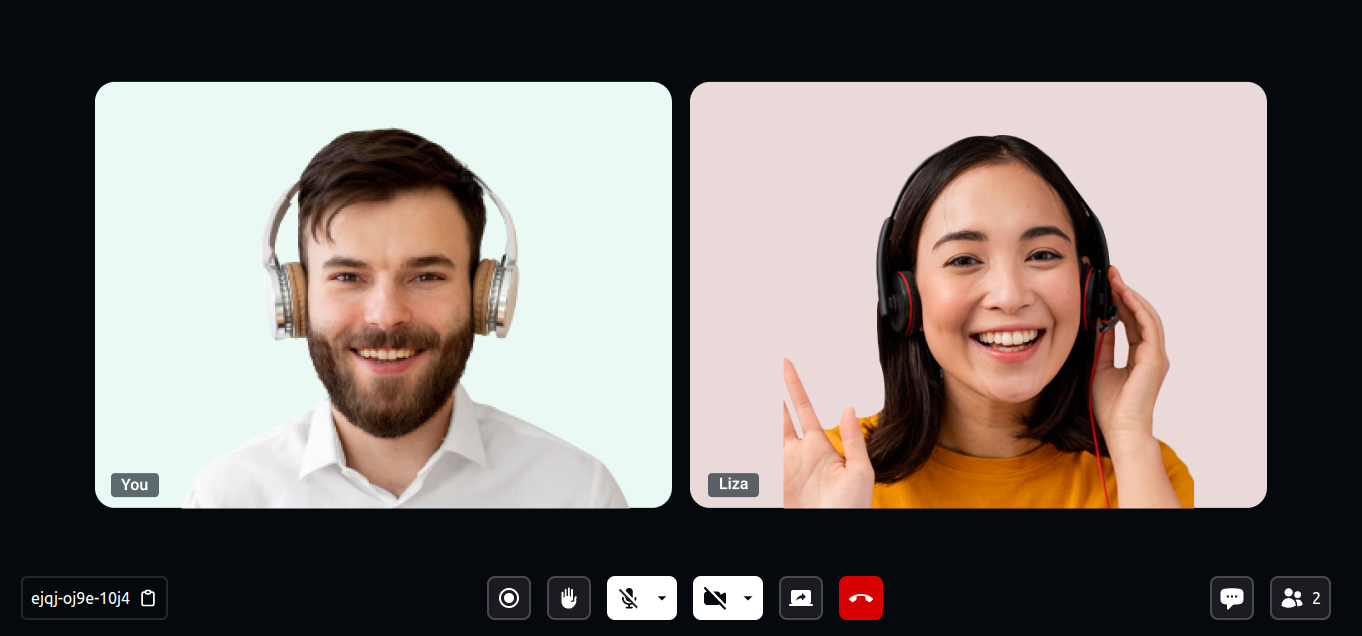
MeetingContainer/ParticipantView.js - It contains the grid of participant that are displayed in the main screen.
4. PresenterView
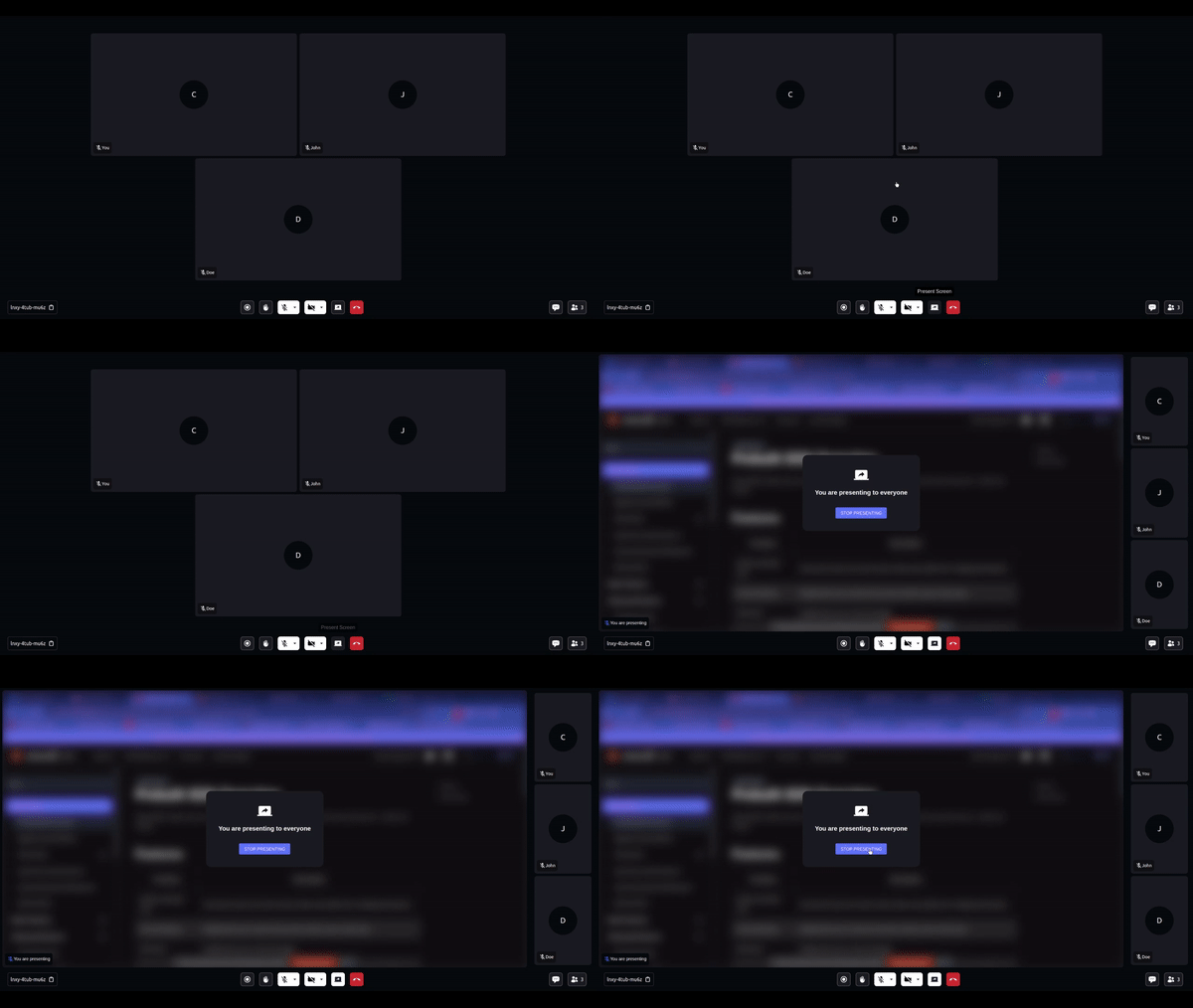
MeetingContainer/PresenterView.js - It contains the view when participant share their screen.
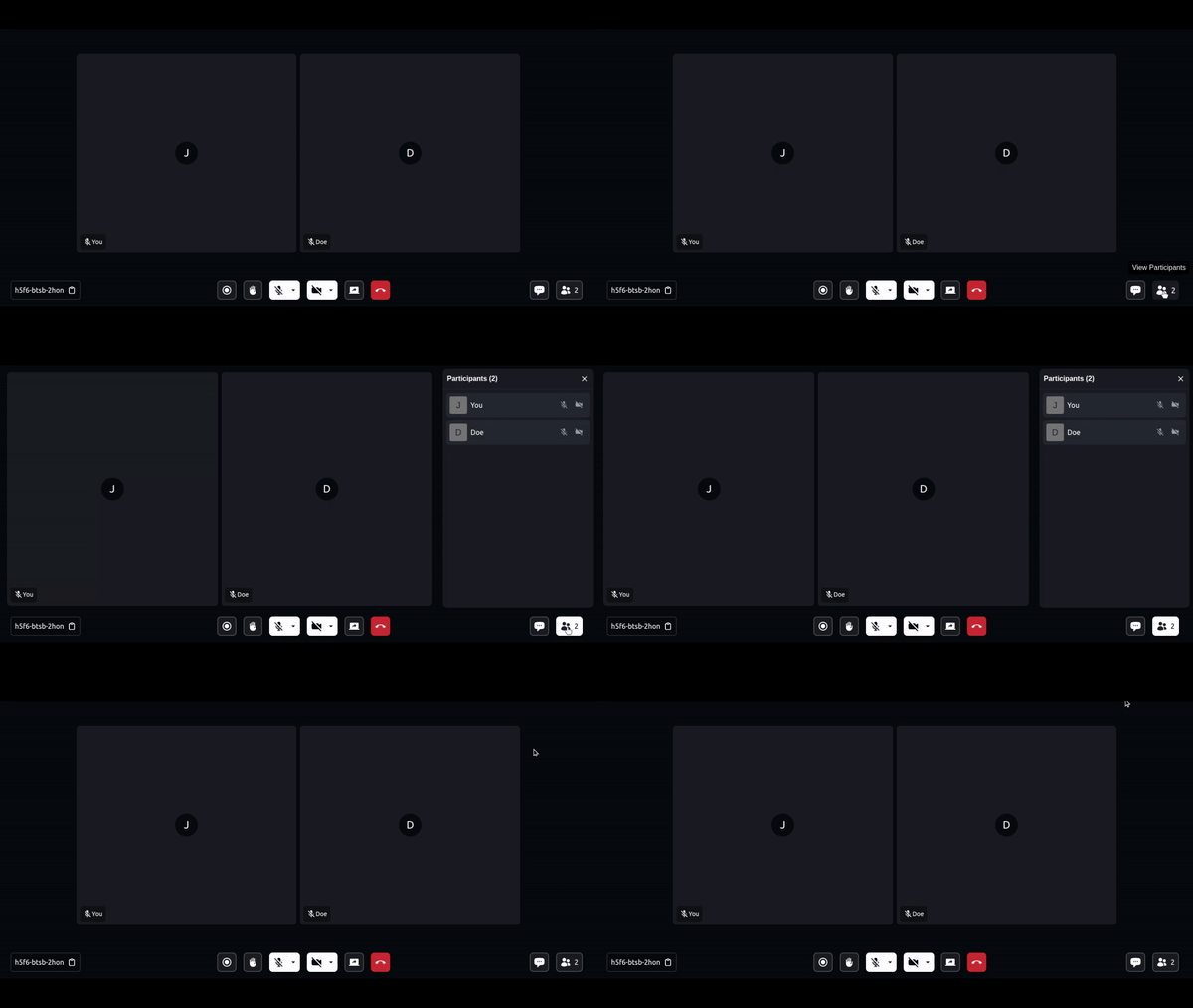
5. ParticipantList
SidebarContainer/ParticipantSidePanel.js - This file is used to show the list of participants present in the meeting.
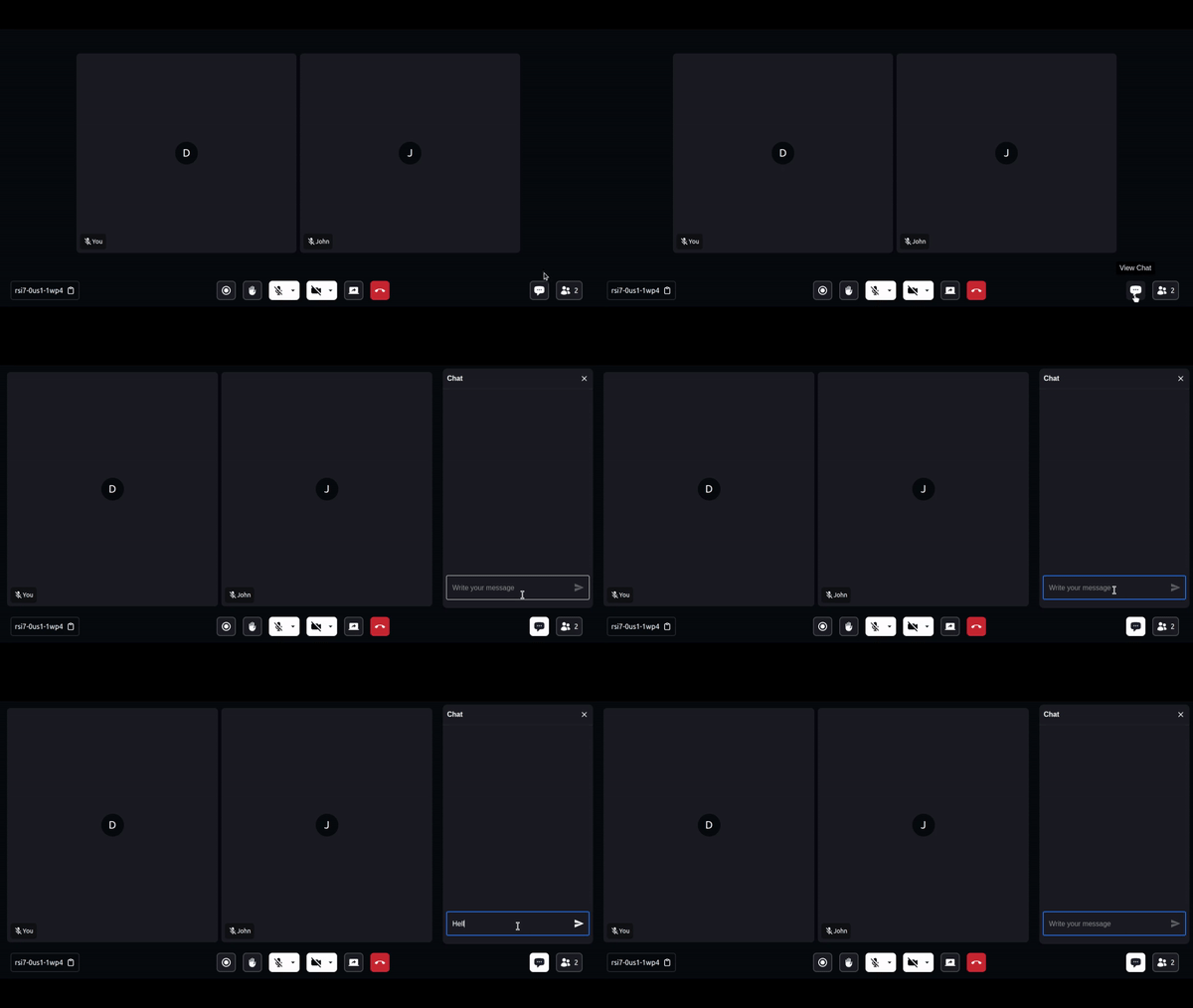
6. Chat
SidebarContainer/ChatSidePanel.js - It contains the chat side panel with chat input and chat messages list.
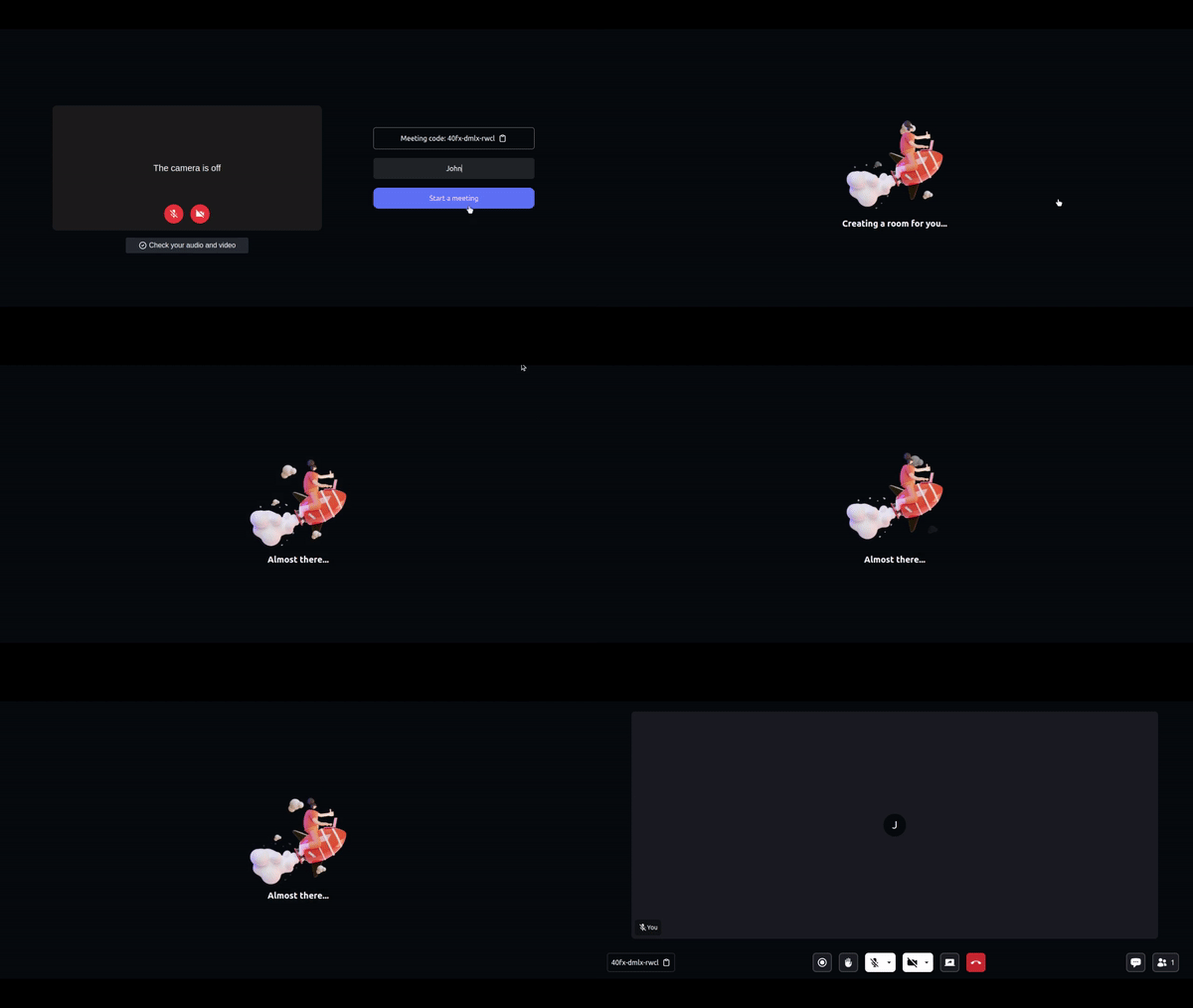
7. Waiting Screen
WaitingToJoin.js - It contains the lottie animation with messages. Untill you receive isMeetingJoined true from meeting that you intialize using useMeeting() from @videosdk.live/react-sdk, this screen will be displayed.
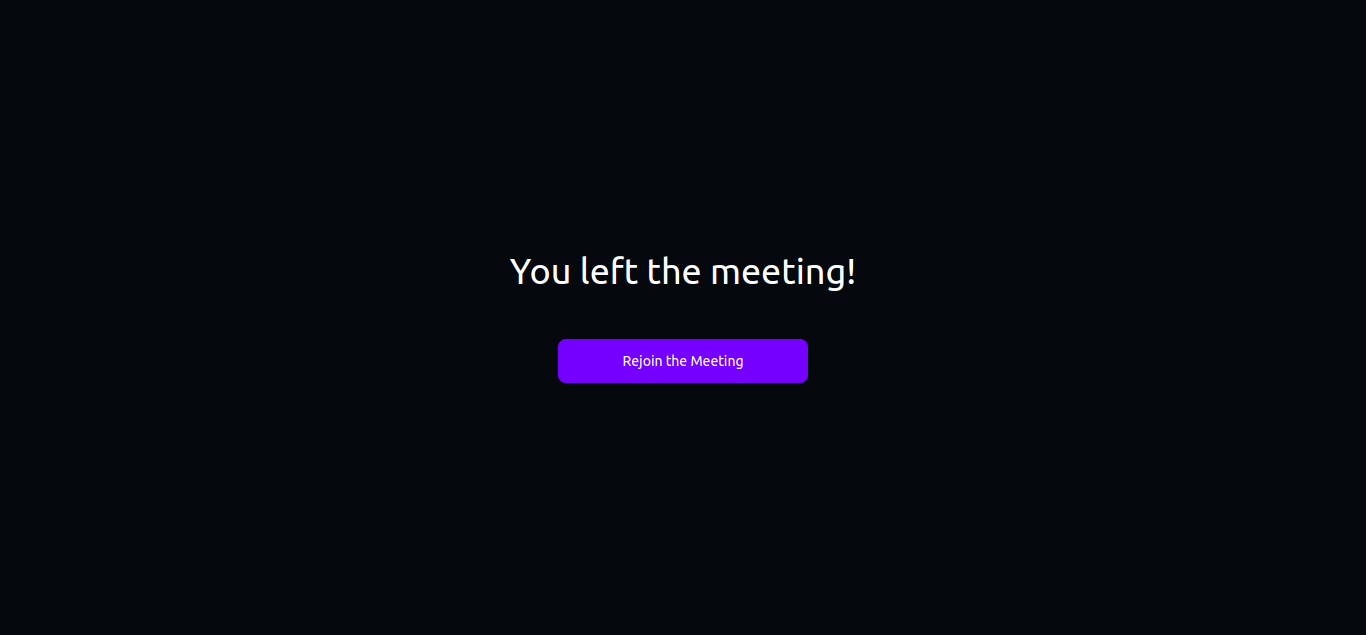
8. Leave Screen
LeaveScreen.js - This file contains the leave screen.
Examples
- Prebuilt SDK Examples
- JavaScript SDK Example
- React JS SDK Example
- React Native SDK Example
- Flutter SDK Example
- Android SDK Example
- iOS SDK Example
Documentation
Read the documentation to start using Video SDK.